
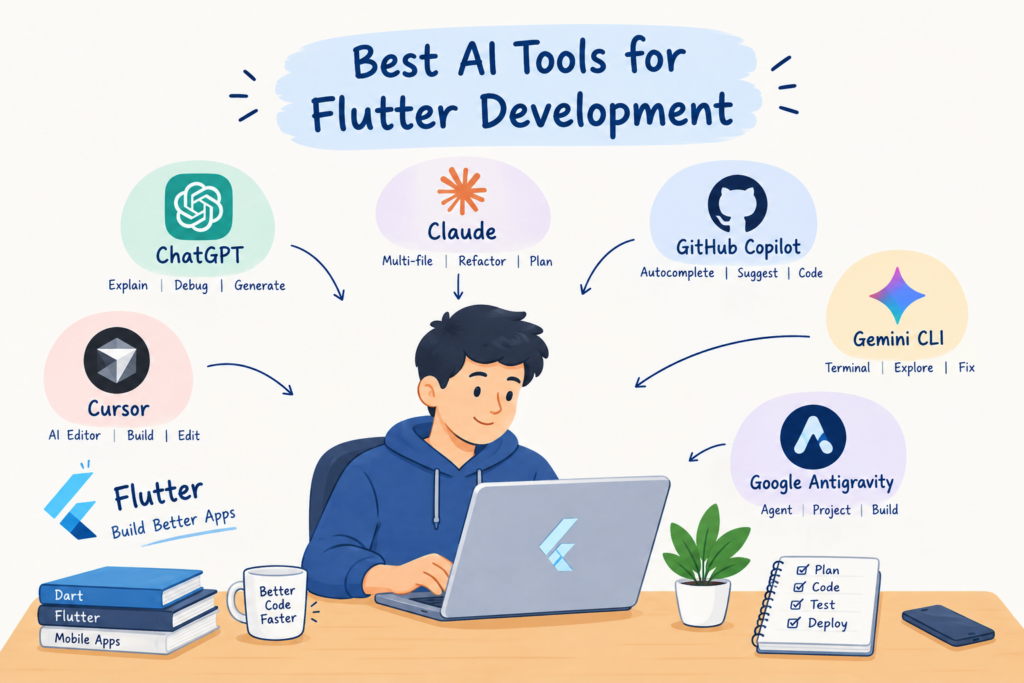
Best AI tools for Flutter development – If you are a Flutter developer, you have probably noticed how quickly AI coding tools are changing the way apps are built. Tasks that once took hours, such as creating a screen, writing a form, fixing a Dart error, or refactoring a widget, can sometimes be completed much faster with the right AI assistant.
But choosing a tool is not as simple as picking the one that generates the most code. An assistant might create a beautiful-looking screen and still use the wrong state management approach, miss an edge case, or break something that was already working in your project.
So, what are the best AI tools for Flutter development in 2026? The answer depends on what you need. Some tools are better for working inside an existing codebase, some are convenient for everyday coding, and others are useful when you want to understand an error or explore a new feature.
In this guide, we will compare popular AI coding assistants, explain where each one is useful, and look at what you should check before accepting AI-generated Dart or Flutter code.
What Are the Best AI Tools for Flutter Development?
Here is a quick overview of the main options worth considering.
| AI tool | Best suited for | What makes it useful |
|---|---|---|
| Claude Code | Complex coding tasks and multi-file changes | Can work through tasks across a project using supported tools |
| Cursor | Daily coding and editing | AI assistance is built into the code editor |
| GitHub Copilot | Code completion and IDE assistance | Helps suggest code and supports chat and agent workflows |
| Gemini CLI | Terminal-based development | Useful for developers who prefer working from the command line |
| Google Antigravity | Agent-based development | Provides an AI-oriented development environment |
| ChatGPT | Learning, debugging and code explanations | Useful for discussing errors, exploring solutions and planning features |
These tools are not identical, and their capabilities can change as new models and integrations are released. Flutter also provides official guidance for connecting supported AI assistants to Dart and Flutter development tools. You can explore it in the official Flutter AI development guide.
Let’s look at each option in more detail.
1. Claude Code: A Strong Option for Complex Flutter Projects
Claude Code is worth considering when you need more than a short code suggestion. It is designed to work with codebases and handle tasks that may involve several files.
For example, imagine you already have a Flutter app with login, API integration, a home screen and a profile section. You want to add a new feature without rewriting the existing architecture. You can ask Claude Code to inspect the relevant files, explain the current implementation, propose a plan and make the necessary changes.
It can be particularly useful for:
- Refactoring large Dart files into smaller widgets.
- Tracing errors across multiple files.
- Adding features to an existing Flutter project.
- Writing or improving unit and widget tests.
- Understanding unfamiliar code written by another developer.
One advantage is that Claude Code has an official Flutter and Dart plugin option, documented by the Flutter team. This can give the assistant access to Flutter-specific guidance and development tools when configured correctly.
However, it is not a replacement for understanding your own code. You still need to review its changes, run the app, check the analyzer output and test important user flows. Some workflows also require a paid plan or separate model access, depending on your setup.
Best for: Developers working on medium-sized or large Flutter projects who want assistance with multi-step coding tasks.
Official website: Claude Code
2. Cursor: An AI Code Editor for Flutter Development
Cursor is an AI-powered code editor built around a familiar coding workflow. Instead of constantly copying code into a separate chat window, you can work with your project and ask the assistant to explain or modify relevant code.
Suppose you are building a registration screen in Flutter. You can ask Cursor to create the form, add validation, organise the widgets and explain which files it changed. You can then inspect those changes in the editor before accepting them.
Cursor can help with:
- Generating Dart code and Flutter widgets.
- Understanding code across project files.
- Refactoring existing implementations.
- Finding possible causes of errors.
- Creating reusable UI components.
- Making changes based on your project instructions.
It can be especially convenient when you want AI assistance and regular code editing in one place. Developers who already use a VS Code-like workflow may find the transition familiar.
There are a few things to remember. AI-generated code can still introduce unnecessary dependencies, duplicate existing functionality or misunderstand how your application manages state. Large changes should be reviewed in small steps rather than accepted blindly.
Best for: Flutter developers who want an AI-focused editor for everyday coding, feature development and refactoring.
Official website: Cursor
3. GitHub Copilot: Useful for Everyday Dart Coding
GitHub Copilot is another popular option for developers who prefer working in an established IDE such as Visual Studio Code. It provides code suggestions and additional AI-assisted workflows, depending on the editor, subscription and configuration.
For a Flutter developer, one common use is reducing repetitive coding. You might begin writing a Dart model, a widget or a method for handling API responses, and Copilot can suggest the next part of the implementation.
It can be useful for:
- Completing Dart functions and classes.
- Creating simple Flutter widgets.
- Generating repetitive model or test code.
- Explaining selected code.
- Suggesting fixes while you work.
- Supporting code-related questions within your editor.
For example, if you are creating several similar form fields, Copilot may help generate the repetitive structure. You can then focus on validation rules, accessibility, error handling and the actual business requirements.
Copilot also supports more advanced agent-style workflows in compatible environments. The available features depend on your setup, so check the current documentation before choosing a plan.
The main limitation is that a code completion that looks correct is not necessarily the best solution for your app. You should still run flutter analyze, execute relevant tests and verify behaviour on an emulator or physical device.
Best for: Developers who want coding suggestions and AI assistance without changing their entire development workflow.
Official website: GitHub Copilot
4. Gemini CLI: An Option for Terminal-Based Flutter Development
If you are comfortable using the terminal, Gemini CLI is another tool to explore. It provides an AI-assisted command-line workflow that can help with coding tasks and project-related work.
For example, you could ask an assistant to inspect a feature, identify likely causes of a Dart analyzer error, suggest a refactoring plan or help write tests. The actual actions available depend on the tool’s permissions and configuration.
Potential use cases include:
- Exploring an existing project structure.
- Investigating build or dependency errors.
- Drafting code changes across files.
- Creating tests for existing functionality.
- Working through a development task step by step.
The Flutter and Dart ecosystem now includes official agent skills and a Dart and Flutter MCP server. When configured in a compatible assistant, these tools can expose capabilities such as analyzer diagnostics, package management and test execution.
This is useful because a coding assistant that can inspect real diagnostics may be better informed than one that only sees a copied error message. It still needs appropriate permissions, and its suggested fixes must be verified.
Best for: Developers who prefer command-line workflows and want to explore AI-assisted development with Flutter-specific tooling.
Official website: Gemini CLI
5. Google Antigravity: An Agent-Based Development Environment
Google Antigravity is worth exploring if you want an AI-oriented environment for working on larger development tasks. It offers an agent-based workflow, and Flutter’s documentation includes instructions for setting up Dart and Flutter integrations.
An example would be asking an agent to build a profile screen using your existing theme, connect it to the current data model and add basic tests. Rather than relying only on a single code snippet, the workflow can involve inspecting project files and working through several steps.
Potential uses include:
- Creating and updating UI components.
- Working across related project files.
- Exploring feature implementations.
- Assisting with test creation and debugging.
- Following Flutter-specific guidance when the relevant integrations are installed.
As with other agent-based tools, the quality of the result depends on the task, project context, model and permissions you provide. Review the changes before running or shipping them, especially if they affect authentication, data storage or network requests.
Best for: Developers interested in agent-based coding and a Google-oriented Flutter development workflow.
Official website: Google Antigravity
6. ChatGPT: Helpful for Learning Flutter and Solving Coding Problems
ChatGPT can be useful at almost every stage of Flutter development, particularly when you need an explanation before writing code.
Imagine that your app displays an exception after an API request. Instead of searching through dozens of unrelated answers, you can share the relevant Dart function, the error message and the expected behaviour. ChatGPT can help you identify possible causes and suggest ways to investigate them.
You can use it for:
- Understanding Flutter widgets and Dart syntax.
- Explaining errors in simple language.
- Generating example screens and reusable components.
- Comparing Provider, Riverpod and Bloc for a particular use case.
- Writing API integration examples.
- Creating test cases.
- Reviewing code for possible edge cases.
- Planning a new feature before implementation.
It can also help beginners understand why a solution works instead of simply providing a code block.
However, ChatGPT may occasionally suggest outdated APIs, incorrect package methods or code that does not match your Flutter version. For better results, provide your relevant dependencies, error output and existing implementation. Ask it to explain assumptions and identify which parts need verification.
Best for: Beginners learning Flutter, developers debugging issues, and anyone who wants to discuss implementation choices before making changes.
Official website: ChatGPT
Which AI Tool Is Best for Different Flutter Development Tasks?
There is no single winner for every task. The best AI coding assistant for Flutter depends on the kind of work you do most often.
| Your requirement | Tools worth trying |
|---|---|
| Generate simple Dart code | GitHub Copilot, Cursor, ChatGPT |
| Build or refactor multiple files | Claude Code, Cursor, Gemini CLI |
| Understand an error message | ChatGPT, Claude Code, Cursor |
| Work from the terminal | Claude Code, Gemini CLI |
| Use an AI-oriented development environment | Google Antigravity, Cursor |
| Learn Flutter from scratch | ChatGPT, GitHub Copilot |
| Work with Flutter-specific diagnostics | A compatible assistant configured with official Flutter/Dart tooling |
This is a practical starting point, not a universal performance ranking. The same tool may perform differently depending on the model, prompt, codebase and task.
How to Choose the Best AI Coding Assistant for Flutter
Before subscribing to an AI tool, think about the problems you actually face in your daily work.
1. Check how well it understands your existing project
Generating a new screen is relatively easy compared with modifying an established application. If your app already has routing, state management, API services and reusable widgets, choose a workflow that can inspect the relevant files and follow your conventions.
Ask it to explain the existing implementation before making changes. This is a simple way to check whether it understands the project.
2. Check support for Dart and Flutter
Flutter development involves more than producing Dart syntax. The assistant should work well with widgets, null safety, asynchronous operations, package dependencies and the testing tools used in your project.
Flutter’s official AI guide explains how compatible assistants can use specialised skills and development tools. Start with the Flutter AI setup documentation if you want a more Flutter-aware workflow.
3. Compare the free and paid options
If you are learning Flutter or working on a personal project, start with an available free tier or trial. Test it on a real task before paying for a subscription.
Compare the current limits, supported models, usage allowances, privacy terms and features on each provider’s official pricing page. Plans can change, so avoid relying on an old price mentioned in an article.
4. Look at debugging, not just code generation
A tool that creates a screen quickly may still struggle when the application fails to build. Try giving it a real error and check whether it identifies the root cause or simply suggests random code changes.
A good workflow should help you investigate the problem and verify the fix.
5. Make sure you can review the generated code
Never treat AI-generated code as automatically production-ready. Check whether the solution is readable, follows your architecture and handles loading, error and empty states correctly.
For Flutter projects, commands such as flutter analyze and flutter test are useful checks. They will not catch every runtime or design problem, but they can help identify issues before release.
How to Use AI to Build a Flutter App More Effectively
The quality of the result often depends on how clearly you explain the task.
For example, instead of writing:
“Create a login screen in Flutter.”
Give the assistant more useful context:
“Create a responsive Flutter login screen using our existing theme and reusable input widgets. Include email and password validation, a loading state, an error message for failed login attempts and a disabled submit button while the request is running. Do not change the existing authentication service or add a new dependency. First inspect the relevant files and explain your plan, then implement the screen and list the tests I should run.”
This gives the assistant a clearer target and reduces the chance of unnecessary changes.
For an existing project, follow a simple process:
- Explain the feature and the expected behaviour.
- Ask the assistant to inspect the relevant files.
- Agree on a short implementation plan.
- Make changes in small, reviewable steps.
- Run
flutter analyzeand relevant tests. - Test the app on an emulator or device.
- Review the final changes before committing them.
This process is particularly useful when an AI assistant is allowed to modify multiple files.
Common Mistakes to Avoid When Using AI for Flutter Development
AI tools can save time, but a few habits can make their output less reliable.
Accepting every generated change: Review the diff before accepting changes, especially if the assistant modifies authentication, routing or shared application state.
Adding unnecessary packages: Ask whether the feature can be implemented with your existing dependencies before introducing another package.
Ignoring project conventions: Tell the assistant which state management solution, naming rules and folder structure your app uses.
Skipping tests: A screen that looks correct may still fail when the network is unavailable, a field is empty or the user taps a button twice.
Sharing secrets: Never paste production API keys, passwords, signing keys or private customer data into an AI tool without understanding its data handling and privacy settings.
Using AI without understanding the code: If you cannot explain what a generated function does, ask for a step-by-step explanation before relying on it.
Frequently Asked Questions
Which AI tool is best for Flutter development in 2026?
There is no single best tool for every developer. Claude Code, Cursor, GitHub Copilot, Gemini CLI, Google Antigravity and ChatGPT each offer different workflows. Choose based on whether you need multi-file changes, editor assistance, terminal-based work, learning support or debugging.
What is the best free AI coding assistant for Flutter?
The answer depends on the free plans and usage limits available at the time you try them. Start by comparing the free options from ChatGPT, GitHub Copilot and Google’s developer tools. Check current terms and test them on a real Flutter task before choosing one.
Can AI generate complete Flutter apps?
AI tools can help create screens, connect features, draft models and write tests. However, a complete production app also needs proper architecture, security, testing, accessibility, performance checks and release preparation. AI can assist with this work, but it does not guarantee a reliable finished app.
Is ChatGPT good for Flutter development?
Yes. ChatGPT can explain Dart code, suggest Flutter widgets, help investigate errors and compare implementation approaches. Its suggestions should be checked against your Flutter version, package documentation and actual application behaviour.
Can AI debug Flutter errors?
AI can help diagnose errors when you provide the relevant code, complete error message and steps to reproduce the problem. Tools configured with appropriate Dart and Flutter diagnostics may have additional project context. Always verify that the proposed fix resolves the actual issue.
Will AI replace Flutter developers?
AI can automate parts of development, such as repetitive code generation and some debugging tasks. Developers are still needed to understand requirements, design architecture, evaluate trade-offs, protect user data and ensure the application behaves correctly. Knowing how to use AI effectively is becoming a useful development skill.
Final Thoughts
The best AI tools for Flutter development are the ones that fit your workflow and help you solve real problems without making your code harder to maintain.
If you are just starting, try ChatGPT for explanations and GitHub Copilot or Cursor for in-editor assistance. If you regularly work with large codebases and multi-step changes, explore Claude Code or a terminal-based workflow. If you prefer Google’s developer ecosystem, take a look at Gemini CLI and Antigravity.
Whichever tool you choose, start with one real feature from your Flutter project. Compare the quality of the code, the time saved and the amount of correction required. That will tell you much more than a tool’s marketing claims.
The goal is not to generate the maximum amount of code. It is to build a reliable Flutter app with less unnecessary work.