
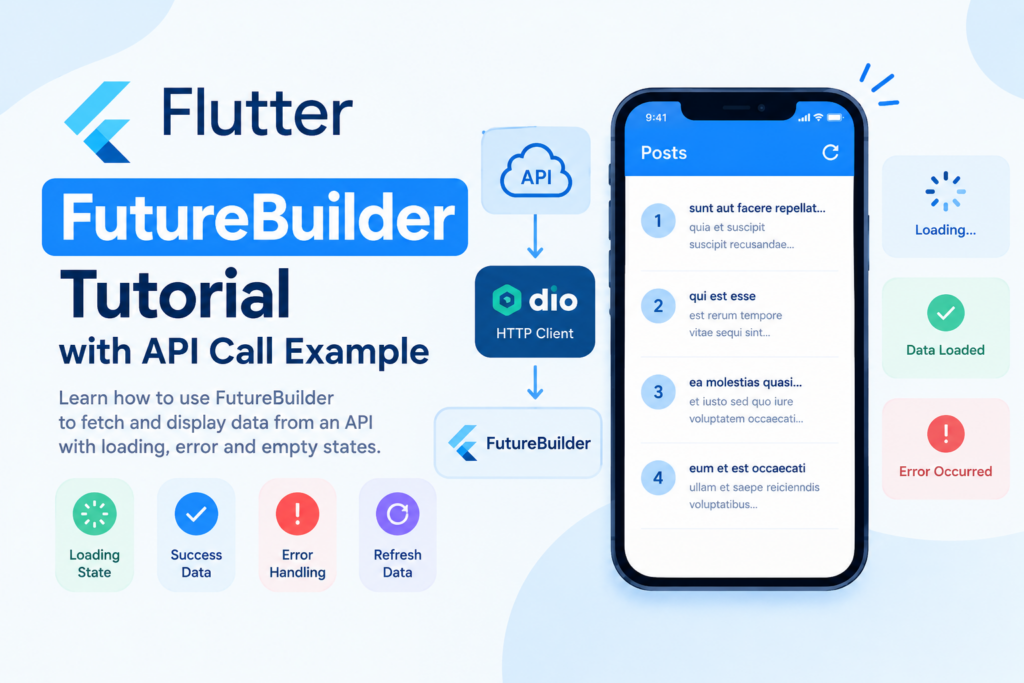
When building Flutter applications, you often need to fetch data from an API and display it on the screen. However, an API request takes time to complete, so your app must handle loading, success, and error states.
Flutter provides a built-in widget called FutureBuilder that makes this process easier. It listens to a Dart Future and rebuilds its UI based on the latest asynchronous result.
In this Flutter FutureBuilder tutorial, you will learn how to use FutureBuilder, understand AsyncSnapshot, fetch API data, display a loading indicator, handle errors, and refresh data with a button.
What Is FutureBuilder in Flutter?
FutureBuilder is a Flutter widget that builds its interface based on the result of a Future.
A Future represents a value or error that will become available later. For example, a Future might return a user profile, a list of products, or data received from a REST API.
FutureBuilder is useful when you want to:
- Display a loading indicator while an API request is running.
- Show data after the request succeeds.
- Display an error message when a request fails.
- Handle asynchronous operations without manually managing every UI state.
You can read more in the official Flutter FutureBuilder documentation.
How Does FutureBuilder Work?
FutureBuilder mainly uses two parameters:
future: The asynchronous operation whose result you want to display.builder: A function that returns the appropriate widget based on anAsyncSnapshot.
The snapshot provides information about the current state of the Future, including its data, error, and connection state.
For example, the UI may show a progress indicator while the Future is waiting and a list of products when the request completes successfully.
Understanding AsyncSnapshot in Flutter
The AsyncSnapshot object helps you determine what your UI should display.
Common properties include:
| Property | Purpose |
|---|---|
connectionState | Indicates the current connection state of the Future |
hasData | Returns true when the snapshot contains non-null data |
data | Contains the successful result, if available |
hasError | Indicates whether the Future completed with an error |
error | Contains the error object, if one occurred |
The most common connection states are:
ConnectionState.none: No Future is currently connected.ConnectionState.waiting: The Future has not completed.ConnectionState.done: The Future has completed, either successfully or with an error.
For most API screens, you can check snapshot.hasError, snapshot.hasData, and the connection state to decide which widget to display.
Step 1: Create a Flutter Project
If you do not already have a Flutter project, create one using:
flutter create futurebuilder_demo
cd futurebuilder_demo
Open the project in your preferred editor.
For this example, we will fetch posts from the JSONPlaceholder demo API:
https://jsonplaceholder.typicode.com/posts
This public demo endpoint returns a list of sample posts, making it suitable for learning and testing.
Step 2: Add the Dio Package
We will use Dio to make the HTTP request. Add it to your project with:
flutter pub add dioIf you want to understand the HTTP client separately, read our guide: Flutter Dio API Call: GET, POST and Error Handling.
That tutorial covers GET requests, POST requests, JSON parsing, and network error handling. In this article, we will focus on displaying asynchronous API results using FutureBuilder.
Step 3: Create a Model Class
Create a file named post_model.dart.
class Post {
  final int id;
  final String title;
  final String body;

  const Post({
    required this.id,
    required this.title,
    required this.body,
  });

  factory Post.fromJson(Map<String, dynamic> json) {
    return Post(
      id: json['id'] as int,
      title: json['title'] as String,
      body: json['body'] as String,
    );
  }
}
The Post model represents one item returned by the API. Its fromJson() factory converts a JSON object into a Dart object.
Using a model class keeps your API data structured and makes it easier to maintain your application.
Step 4: Create an API Service
Create a file named api_service.dart:
import 'package:dio/dio.dart';
import 'post_model.dart';

class ApiService {
  final Dio _dio = Dio(
    BaseOptions(
      baseUrl: 'https://jsonplaceholder.typicode.com',
      connectTimeout: const Duration(seconds: 10),
      receiveTimeout: const Duration(seconds: 10),
    ),
  );

  Future<List<Post>> fetchPosts() async {
    final response = await _dio.get('/posts');

    final data = response.data as List<dynamic>;

    return data.map((item) {
      return Post.fromJson(
        Map<String, dynamic>.from(item as Map),
      );
    }).toList();
  }
}
Here is what the code does:
- Creates a Dio client with a base URL.
- Sends a GET request to
/posts. - Reads the JSON response.
- Converts each response item into a
Postobject. - Returns a
Future<List<Post>>.
Because the method is asynchronous, FutureBuilder can use its Future to determine when the data becomes available.
Step 5: Use FutureBuilder to Display API Data
Now create main.dart and add the following complete example:
import 'package:flutter/material.dart';
import 'api_service.dart';
import 'post_model.dart';

void main() {
  runApp(const MyApp());
}

class MyApp extends StatelessWidget {
  const MyApp({super.key});

  @override
  Widget build(BuildContext context) {
    return MaterialApp(
      debugShowCheckedModeBanner: false,
      title: 'FutureBuilder Example',
      theme: ThemeData(
        colorSchemeSeed: Colors.blue,
        useMaterial3: true,
      ),
      home: const PostsScreen(),
    );
  }
}

class PostsScreen extends StatefulWidget {
  const PostsScreen({super.key});

  @override
  State<PostsScreen> createState() => _PostsScreenState();
}

class _PostsScreenState extends State<PostsScreen> {
  final ApiService _apiService = ApiService();

  late Future<List<Post>> _postsFuture;

  @override
  void initState() {
    super.initState();
    _postsFuture = _apiService.fetchPosts();
  }

  void _refreshPosts() {
    setState(() {
      _postsFuture = _apiService.fetchPosts();
    });
  }

  @override
  Widget build(BuildContext context) {
    return Scaffold(
      appBar: AppBar(
        title: const Text('Flutter FutureBuilder'),
        actions: [
          IconButton(
            onPressed: _refreshPosts,
            icon: const Icon(Icons.refresh),
            tooltip: 'Refresh posts',
          ),
        ],
      ),
      body: FutureBuilder<List<Post>>(
        future: _postsFuture,
        builder: (context, snapshot) {
          if (snapshot.connectionState ==
              ConnectionState.waiting) {
            return const Center(
              child: CircularProgressIndicator(),
            );
          }

          if (snapshot.hasError) {
            return Center(
              child: Padding(
                padding: const EdgeInsets.all(16),
                child: Column(
                  mainAxisSize: MainAxisSize.min,
                  children: [
                    const Icon(
                      Icons.error_outline,
                      size: 48,
                      color: Colors.red,
                    ),
                    const SizedBox(height: 12),
                    const Text(
                      'Unable to load posts.',
                      textAlign: TextAlign.center,
                    ),
                    const SizedBox(height: 12),
                    ElevatedButton(
                      onPressed: _refreshPosts,
                      child: const Text('Try Again'),
                    ),
                  ],
                ),
              ),
            );
          }

          final posts = snapshot.data ?? <Post>[];

          if (posts.isEmpty) {
            return const Center(
              child: Text('No posts found.'),
            );
          }

          return ListView.builder(
            itemCount: posts.length,
            itemBuilder: (context, index) {
              final post = posts[index];

              return Card(
                margin: const EdgeInsets.symmetric(
                  horizontal: 12,
                  vertical: 6,
                ),
                child: ListTile(
                  leading: CircleAvatar(
                    child: Text('${post.id}'),
                  ),
                  title: Text(post.title),
                  subtitle: Text(post.body),
                ),
              );
            },
          );
        },
      ),
    );
  }
}
Run the application:
flutter runWhen the screen opens, the app sends a GET request and displays a progress indicator while waiting. Once the request succeeds, it shows a scrollable list of posts. If the request fails, the screen displays an error state with a retry button.
The refresh icon creates a new Future, allowing the app to fetch the data again.
Step 6: Understand the FutureBuilder Code
Let’s examine the most important part:
FutureBuilder<List<Post>>(
  future: _postsFuture,
  builder: (context, snapshot) {
    // Build the UI based on the snapshot.
    return const SizedBox.shrink();
  },
)
FutureBuilder<List<Post>> tells Flutter that the Future returns a list of Post objects.
The future parameter receives the stored Future. The builder callback receives the latest snapshot and returns a widget for the current state.
Display a loading indicator
if (snapshot.connectionState ==
    ConnectionState.waiting) {
  return const Center(
    child: CircularProgressIndicator(),
  );
}
This displays a progress indicator while the Future is waiting to complete.
Handle errors
if (snapshot.hasError) {
  return const Center(
    child: Text('Unable to load data.'),
  );
}
If the Future completes with an error, snapshot.hasError becomes true. In a production application, you may also log diagnostic details and provide a retry action.
Display successful data
final posts = snapshot.data ?? <Post>[];

return ListView.builder(
  itemCount: posts.length,
  itemBuilder: (context, index) {
    return ListTile(
      title: Text(posts[index].title),
    );
  },
);
Once the Future completes successfully, its result is available through snapshot.data.
Always account for empty collections when building a real application. A successful request does not necessarily mean the API returned any items.
Step 7: Refresh FutureBuilder Data
To fetch the data again, assign a new Future and rebuild the widget:
void refreshData() {
  setState(() {
    _postsFuture = _apiService.fetchPosts();
  });
}
This is the approach used by the refresh button in our example.
Avoid creating the Future directly inside the build() method:
// Avoid this pattern.
FutureBuilder<List<Post>>(
  future: _apiService.fetchPosts(),
  builder: (context, snapshot) {
    return const SizedBox.shrink();
  },
)
If the parent rebuilds, this expression can create a new Future and restart the asynchronous operation. Store the Future in state or obtain it in an appropriate lifecycle method instead.
For additional details, see Flutter’s official guide to fetching data.
Step 8: Common FutureBuilder Mistakes
1. Calling the API inside build()
Creating a new Future on every build can trigger repeated requests. Store the Future and replace it only when a new request is required.
2. Forgetting to handle errors
If the request fails and the UI only checks for data, users may see a spinner or an incomplete screen. Check snapshot.hasError and provide a clear error state.
3. Assuming hasData always means a non-empty list
hasData checks for non-null data, not whether a collection contains items. Check posts.isEmpty separately.
4. Using dynamic data everywhere
Convert API responses into model objects. Strongly typed models make code easier to understand and help catch errors earlier.
5. Using FutureBuilder for every state management problem
FutureBuilder is suitable for a single asynchronous result, such as loading a profile or fetching a list once. For more complex applications involving shared state, multiple screens, or coordinated updates, a state management solution may be more appropriate.
You can learn the basics in our Flutter Riverpod Tutorial. Riverpod can help organize asynchronous data and shared application state as a project grows.
FutureBuilder vs Riverpod
Both approaches can work with asynchronous API requests, but they serve different needs.
| Feature | FutureBuilder | Riverpod |
|---|---|---|
| Built into Flutter | Yes | Requires a package |
| Best for | A local Future and its UI | Shared and reusable state |
| Loading and error states | Managed through AsyncSnapshot | Can be represented through asynchronous provider state |
| Sharing state across screens | Requires additional structure | Designed to support shared state |
| Learning curve | Simple | Requires learning providers and their lifecycle |
You do not need Riverpod for every API call. Start with FutureBuilder for straightforward screens, and consider Riverpod when your app needs reusable asynchronous state or more organized state management.
Frequently Asked Questions
1. What is FutureBuilder in Flutter?
FutureBuilder is a widget that builds its UI based on the latest state of a Future. It is commonly used to display loading, success, and error states for asynchronous operations.
2. What is the difference between Future and FutureBuilder?
A Future represents a value or error that becomes available later. FutureBuilder is a widget that uses that Future’s state to build the interface.
3. Can FutureBuilder be used with an API call?
Yes. You can pass a Future returned by an API service to FutureBuilder and use the snapshot to display the response, a loading indicator, or an error message.
4. Why is FutureBuilder called multiple times?
The builder callback may run multiple times as Flutter updates the UI. This is normal. However, creating a new Future inside build() can restart the asynchronous operation when the widget rebuilds.
5. How do I refresh data in FutureBuilder?
Store the Future in a state variable. When the user requests a refresh, assign a new Future inside setState() so FutureBuilder can observe the new operation.
6. Should I use FutureBuilder or Riverpod?
Use FutureBuilder for straightforward asynchronous UI. Consider Riverpod when multiple widgets or screens need shared state, or when you want to centralize and reuse API state management.
Conclusion
Flutter FutureBuilder is a useful built-in widget for displaying the results of asynchronous operations. It lets you handle loading, success, error, and empty states without manually managing every update to the interface.
In this tutorial, you learned how to create a model, fetch posts with Dio, display the response using FutureBuilder, handle errors, and refresh the data.
For your next step, explore our Flutter Dio API Call tutorial to learn more about HTTP requests, and our Flutter Riverpod Tutorial to understand how asynchronous state management can scale in larger Flutter applications.