
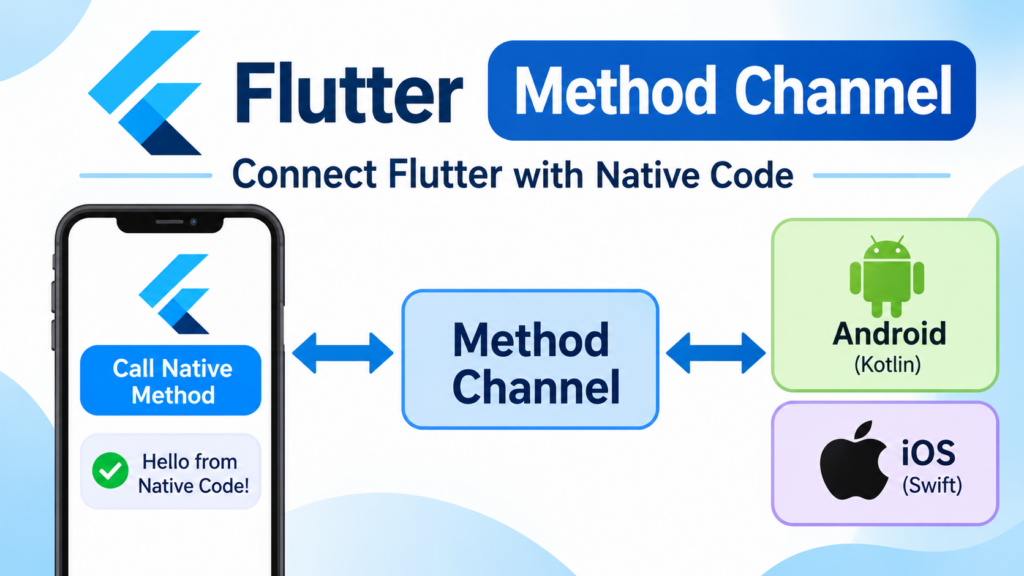
Flutter allows developers to build cross-platform applications using a single codebase. However, sometimes you need to access native Android or iOS functionality that is not directly available through Flutter.
For example, you may want to access device information, control native features, interact with platform-specific SDKs, or use an existing Android or iOS library.
This is where Flutter Method Channel becomes useful.
Method Channel allows communication between Flutter (Dart) and native platform code such as Kotlin, Java, Swift, or Objective-C.
In this tutorial, you will learn how Flutter Method Channel works and how to implement it with practical examples for Android and iOS.
1. What Is Method Channel in Flutter?
A Method Channel is a communication mechanism that allows Flutter and native platform code to exchange method calls and responses.
Flutter uses Dart for application development, while Android applications commonly use Kotlin or Java and iOS applications use Swift or Objective-C.
Method Channel connects these two environments.
For example:
- Flutter requests the device name.
- Native Android or iOS code reads the device information.
- Native code sends the result back to Flutter.
- Flutter displays the returned information.
You can use Method Channel when you need functionality that requires native platform access.
2. How Flutter Method Channel Works
Method Channel uses a channel name to establish communication between Flutter and native code.
Both sides must use the same channel name.
The communication process looks like this:
- Flutter creates a Method Channel.
- Flutter invokes a native method using
invokeMethod(). - Native Android or iOS code receives the method call.
- Native code performs the requested operation.
- Native code sends a result back to Flutter.
- Flutter receives and uses the result.
Basic communication flow
       Flutter Application
              |
              |
         Dart Code
              |
              |
       Method Channel
              |
              |
       Native Platform
          /       \
         /         \
      Android      iOS
      Kotlin      Swift
         \         /
          \       /
         Native Result
              |
              |
       Flutter Application
Method Channel uses platform messages and a message codec to exchange data between Flutter and native code.
3. Create a Flutter Project
First, create a new Flutter project.
Open your terminal and run:
flutter create method_channel_demoNavigate to the project directory:
cd method_channel_demoOpen the project in your preferred IDE:
code .You can also open it using Android Studio or VS Code.
4. Create Method Channel in Flutter
Let’s start by creating a Method Channel in Dart.
Open lib/main.dart and add the following code:
import 'package:flutter/material.dart';
import 'package:flutter/services.dart';

void main() {
  runApp(const MyApp());
}

class MyApp extends StatelessWidget {
  const MyApp({super.key});

  @override
  Widget build(BuildContext context) {
    return const MaterialApp(
      debugShowCheckedModeBanner: false,
      home: HomeScreen(),
    );
  }
}

class HomeScreen extends StatefulWidget {
  const HomeScreen({super.key});

  @override
  State<HomeScreen> createState() => _HomeScreenState();
}

class _HomeScreenState extends State<HomeScreen> {
  static const platform = MethodChannel(
    'com.example.method_channel/device',
  );

  String deviceName = 'Unknown Device';

  Future<void> getDeviceName() async {
    try {
      final String result = await platform.invokeMethod(
        'getDeviceName',
      );

      setState(() {
        deviceName = result;
      });
    } on PlatformException catch (e) {
      setState(() {
        deviceName = 'Error: ${e.message}';
      });
    } on MissingPluginException {
      setState(() {
        deviceName = 'Native method not implemented';
      });
    }
  }

  @override
  Widget build(BuildContext context) {
    return Scaffold(
      appBar: AppBar(
        title: const Text('Method Channel Example'),
      ),
      body: Center(
        child: Column(
          mainAxisAlignment: MainAxisAlignment.center,
          children: [
            Text(
              'Device Name: $deviceName',
              style: const TextStyle(fontSize: 18),
              textAlign: TextAlign.center,
            ),
            const SizedBox(height: 20),
            ElevatedButton(
              onPressed: getDeviceName,
              child: const Text('Get Device Name'),
            ),
          ],
        ),
      ),
    );
  }
}
Understanding the Dart code
Let’s understand the important parts.
1. Import services package
import 'package:flutter/services.dart';This package provides Flutter platform communication classes, including MethodChannel and PlatformException.
2. Create a Method Channel
static const platform = MethodChannel(
  'com.example.method_channel/device',
);
Here, we create a channel with the name:
com.example.method_channel/device
The same channel name must be used in native Android and iOS code.
3. Invoke a native method
final String result = await platform.invokeMethod(
  'getDeviceName',
);
The invokeMethod() function sends a request to native code.
Here, getDeviceName is the method that we want to execute on the native platform.
4. Handle the response
The native implementation returns a result, which Flutter receives and stores in deviceName.
5. Implement Method Channel in Android Using Kotlin
Now let’s implement the native Android side.
Open the following file in your Flutter project:
android/app/src/main/kotlin/<your-package-name>/MainActivity.kt
The exact directory depends on your Android package name.
Replace the existing MainActivity.kt code with:
package com.example.method_channel_demo

import android.os.Build
import io.flutter.embedding.android.FlutterActivity
import io.flutter.embedding.engine.FlutterEngine
import io.flutter.plugin.common.MethodChannel

class MainActivity : FlutterActivity() {

    private val CHANNEL = "com.example.method_channel/device"

    override fun configureFlutterEngine(
        flutterEngine: FlutterEngine
    ) {
        super.configureFlutterEngine(flutterEngine)

        MethodChannel(
            flutterEngine.dartExecutor.binaryMessenger,
            CHANNEL
        ).setMethodCallHandler { call, result ->

            when (call.method) {

                "getDeviceName" -> {
                    val deviceName = Build.MODEL
                    result.success(deviceName)
                }

                else -> {
                    result.notImplemented()
                }
            }
        }
    }
}
Important: The package declaration at the top must match your project’s actual Android package. Do not blindly copy the example package name if your project uses a different one.
Understanding the Kotlin code
1. Import required classes
import android.os.Build
import io.flutter.embedding.android.FlutterActivity
import io.flutter.embedding.engine.FlutterEngine
import io.flutter.plugin.common.MethodChannel
These imports provide access to Android device information and Flutter’s native communication APIs.
2. Define the channel name
private val CHANNEL = "com.example.method_channel/device"This must match the channel name used in Dart.
3. Configure Flutter Engine
override fun configureFlutterEngine(
    flutterEngine: FlutterEngine
)
This method lets you configure platform communication when the Flutter engine is set up.
4. Register the Method Channel handler
MethodChannel(
    flutterEngine.dartExecutor.binaryMessenger,
    CHANNEL
).setMethodCallHandler { call, result ->
This registers a handler that listens for method calls from Flutter.
5. Handle the requested method
when (call.method) {
    "getDeviceName" -> {
        val deviceName = Build.MODEL
        result.success(deviceName)
    }
}
When Flutter calls getDeviceName, Android retrieves the device model using Build.MODEL and returns it using result.success().
6. Handle unsupported methods
result.notImplemented()This tells Flutter that the requested method is not supported by the native implementation.
6. Implement Method Channel in iOS Using Swift
If you want your Method Channel to work on iOS, you also need to implement the native iOS side.
Open your iOS project in Xcode.
Navigate to:
ios/Runner/AppDelegate.swift
Add the following implementation:
import UIKit
import Flutter

@main
@objc class AppDelegate: FlutterAppDelegate {

    private let CHANNEL = "com.example.method_channel/device"

    override func application(
        _ application: UIApplication,
        didFinishLaunchingWithOptions launchOptions:
        [UIApplication.LaunchOptionsKey: Any]?
    ) -> Bool {

        let controller = window?.rootViewController
            as! FlutterViewController

        let methodChannel = FlutterMethodChannel(
            name: CHANNEL,
            binaryMessenger: controller.binaryMessenger
        )

        methodChannel.setMethodCallHandler {
            (call: FlutterMethodCall, result: @escaping FlutterResult) in

            switch call.method {

            case "getDeviceName":
                result(UIDevice.current.model)

            default:
                result(FlutterMethodNotImplemented)
            }
        }

        GeneratedPluginRegistrant.register(
            with: self
        )

        return super.application(
            application,
            didFinishLaunchingWithOptions: launchOptions
        )
    }
}
Understanding the Swift code
1. Import Flutter
import FlutterThis gives access to Flutter classes such as FlutterMethodChannel and FlutterViewController.
2. Create the channel
let methodChannel = FlutterMethodChannel(
    name: CHANNEL,
    binaryMessenger: controller.binaryMessenger
)
The channel name must match the Dart and Android implementations.
3. Register a method handler
methodChannel.setMethodCallHandler {
    (call, result) in
This receives method calls sent from Flutter.
4. Return the device model
case "getDeviceName":
    result(UIDevice.current.model)
This example returns the iOS device model to Flutter.
iOS implementation note: The example assumes the standard Flutter application lifecycle where window?.rootViewController is a FlutterViewController. If your project uses a customized scene-based lifecycle or another root controller, obtain the Flutter engine’s binary messenger from your actual Flutter view controller or engine instead.
7. Pass Arguments From Flutter to Native Code
Method Channel is not limited to calling methods without parameters. You can also send arguments from Flutter to native code.
For example, suppose you want to send a username from Flutter and receive a greeting from Android.
Flutter Code
Future<void> greetUser() async {
  try {
    final String result = await platform.invokeMethod(
      'greetUser',
      {
        'name': 'Rakesh',
      },
    );

    setState(() {
      deviceName = result;
    });
  } on PlatformException catch (e) {
    debugPrint('Error: ${e.message}');
  }
}
Here, we pass a Map containing the username.
Android Kotlin Code
Add another method to the existing setMethodCallHandler:
"greetUser" -> {
    val name = call.argument<String>("name") ?: "User"

    result.success("Hello, $name!")
}
When Flutter calls this method, Android receives the name and returns a greeting.
Expected response:
Hello, Rakesh!iOS Swift Code
Add this case to the existing Swift method handler:
case "greetUser":
    let arguments = call.arguments as? [String: Any]
    let name = arguments?["name"] as? String ?? "User"

    result("Hello, \(name)!")
Now the same Flutter code can communicate with both Android and iOS.
8. Handle Errors in Method Channel
Error handling is important when working with native code.
Native methods may fail because of missing permissions, unsupported functionality, invalid arguments, or platform-specific errors.
Flutter provides PlatformException to handle errors returned by native implementations.
Android Error Handling
You can return an error using result.error().
"getDeviceName" -> {
    try {
        val deviceName = Build.MODEL
        result.success(deviceName)

    } catch (e: Exception) {
        result.error(
            "DEVICE_ERROR",
            "Unable to get device name",
            e.message
        )
    }
}
iOS Error Handling
In Swift, you can return an error using FlutterError.
case "getDeviceName":
    let deviceName = UIDevice.current.model

    if deviceName.isEmpty {
        result(
            FlutterError(
                code: "DEVICE_ERROR",
                message: "Unable to get device name",
                details: nil
            )
        )
    } else {
        result(deviceName)
    }
Flutter Error Handling
On the Dart side, use a try-catch block:
try {
  final result = await platform.invokeMethod(
    'getDeviceName',
  );

  debugPrint(result.toString());

} on PlatformException catch (e) {
  debugPrint('Platform Error: ${e.message}');

} on MissingPluginException {
  debugPrint('Method Channel is not implemented');
}
This helps your application handle native errors without crashing unexpectedly.
9. Method Channel Data Types
Flutter Method Channel uses a message codec to transfer supported data between Dart and native code.
Common supported values include:
| Dart Type | Android Kotlin | Swift |
|---|---|---|
| String | String | String |
| int | Int / Long | Int / NSNumber |
| double | Double | Double / NSNumber |
| bool | Boolean | Bool / NSNumber |
| List | List | Array |
| Map | Map | Dictionary |
| null | null | NSNull |
For example, you can send multiple values from Flutter:
await platform.invokeMethod(
  'saveUser',
  {
    'name': 'Rakesh',
    'age': 25,
    'isActive': true,
  },
);
On Android, you can read these arguments using call.argument().
On iOS, you can read them by converting call.arguments into a Swift dictionary.
For custom objects or unsupported data structures, convert the values into supported types before sending them through the channel.
10. Method Channel vs Event Channel vs Basic Message Channel
Flutter provides different platform communication channels for different use cases.
| Feature | Method Channel | Event Channel | Basic Message Channel |
|---|---|---|---|
| Communication | Method calls and responses | Event streams | Two-way messages |
| Main use | Request-response operations | Continuous updates | Custom message exchange |
| Example | Get device information | Battery or sensor updates | Custom platform messages |
| Response | Single result | Multiple events | Message response |
Method Channel
Use Method Channel when Flutter needs to call a native method and receive a response.
Example: Get device information.
Event Channel
Use Event Channel when native code needs to continuously send events to Flutter.
Example: Listen to sensor updates.
Basic Message Channel
Use Basic Message Channel when you need custom two-way message communication without the method-call structure.
Choose the channel based on your communication requirements.
11. Common Method Channel Mistakes
Here are some common mistakes developers should avoid.
1. Using Different Channel Names
The channel name must match on both Flutter and native sides.
Even a small spelling difference can prevent communication.
2. Forgetting to Register the Native Handler
Flutter can invoke a method, but if the native handler is not registered, the call will fail with a MissingPluginException or another channel-related error.
3. Forgetting to Return a Result
For each incoming method call, native code should complete the result with success(), error(), or notImplemented().
Do not attempt to complete the same result more than once.
4. Using Unsupported Data Types
Method Channel only supports values handled by its configured codec.
Convert custom objects into supported values such as Maps, Lists, Strings, and numbers.
5. Testing Only on One Platform
Android and iOS require separate native implementations.
If you implement only Kotlin code, the feature will not automatically work on iOS.
6. Not Handling Native Errors
Always handle PlatformException and unexpected missing implementations in Dart.
12. Best Practices for Flutter Method Channel
Follow these best practices when implementing Method Channel in production applications:
- Use meaningful and consistent channel names.
- Keep native method names clear and descriptive.
- Separate Method Channel logic from UI widgets when possible.
- Handle errors on both Dart and native sides.
- Validate arguments before using them in native code.
- Return supported data types through the channel.
- Avoid performing long-running work on the main thread.
- Test your implementation on real Android and iOS devices.
- Document native methods and expected arguments.
- Consider using an existing Flutter plugin when it already provides the required functionality.
Frequently Asked Questions (FAQs)
1. What is Method Channel in Flutter?
Method Channel is a communication mechanism that allows Flutter’s Dart code to call native Android or iOS methods and receive responses.
2. Why do we use Method Channel in Flutter?
We use Method Channel when we need to access native platform functionality that is not directly available through Flutter or an existing package.
3. Can Method Channel work on both Android and iOS?
Yes. You can use the same Dart Method Channel code for both platforms, but you must implement the corresponding native functionality separately using Kotlin or Java for Android and Swift or Objective-C for iOS.
4. What is invokeMethod() in Flutter?
invokeMethod() is a function used to send a method call from Flutter to native platform code. It returns a Future containing the native response.
5. What is the difference between Method Channel and Event Channel?
Method Channel is designed for request-response communication, while Event Channel is designed for continuous event streams from native code to Flutter.
6. Can we pass parameters through Method Channel?
Yes. You can pass supported arguments such as Strings, numbers, Lists, and Maps from Flutter to native Android or iOS code.
7. Is Method Channel asynchronous?
Yes. Flutter’s invokeMethod() returns a Future, so Dart can await the native response without blocking the UI thread.
8. Do we need Kotlin or Swift to use Method Channel?
You need native platform code to implement custom Method Channel functionality. Kotlin or Java is used for Android, while Swift or Objective-C is used for iOS.
Conclusion
Flutter Method Channel is a powerful feature that allows Flutter applications to communicate with native Android and iOS code.
In this tutorial, we covered how to create a Method Channel, call native methods, pass arguments, receive responses, handle errors, and implement native functionality using Kotlin and Swift.
If you are building advanced Flutter applications and need access to native platform features, understanding Method Channel is an important skill.
Start with a simple example, such as retrieving device information, and gradually integrate more complex native functionality into your Flutter applications.