
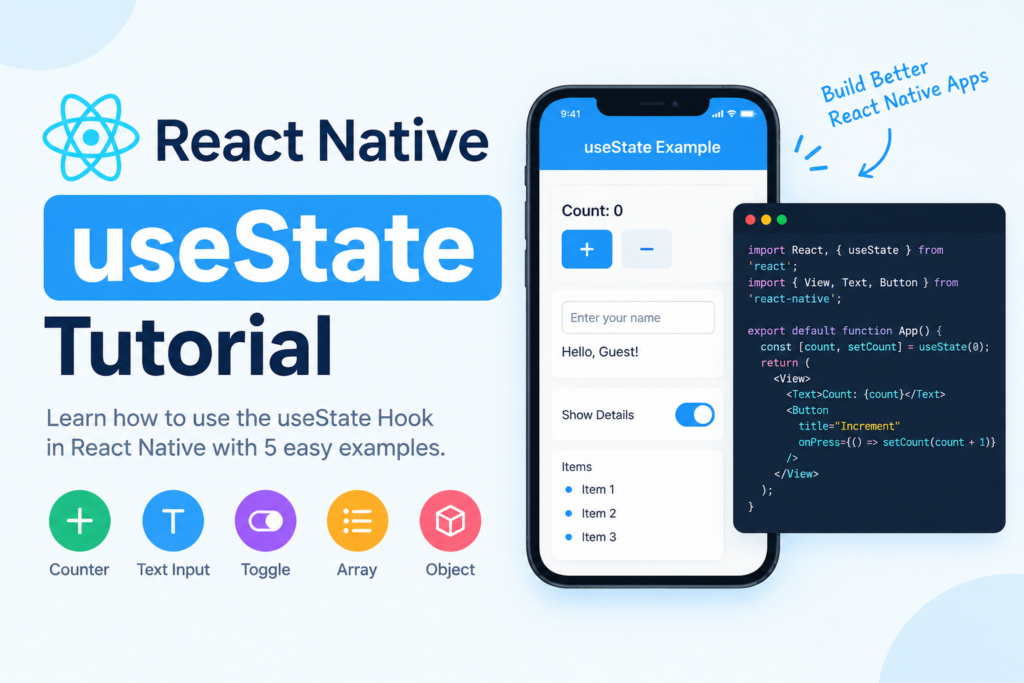
React Native useState- When building a mobile application, you often need to store information that changes while the app is running. For example, you might need to update a counter, save text entered by a user, show or hide a password, or add items to a list.
In React Native, the useState Hook makes these tasks simple. It allows functional components to store state and update the user interface when that state changes.
In this React Native useState tutorial, you will learn how the useState Hook works, how to update state correctly, and how to use it with strings, numbers, objects, arrays, and toggle buttons.
By the end of this guide, you will be able to use useState in your own React Native applications.
What Is useState in React Native?
useState is a React Hook used to add state to functional components. React Native uses React’s state management system, so you can use useState in the same way you would in a React web application.
State is data that can change over time and affect what appears on the screen.
For example, an app might use state to store:
- A counter value
- Text entered into a form
- Whether a password is visible
- A list of shopping items
- Whether a loading indicator is displayed
- The currently selected tab
When you update state using its setter function, React schedules a re-render so the component can display the updated value.
React Native useState Syntax
The basic syntax is:
const [state, setState] = useState(initialValue);Here is what each part means:
state: The current state value.setState: The function used to update the state.useState: The React Hook that creates the state variable.initialValue: The initial value used when the component mounts.
For example:
import React, { useState } from 'react';
import { Text, View } from 'react-native';

export default function App() {
  const [name, setName] = useState('Guest');

  return (
    <View>
      <Text>Hello, {name}!</Text>
    </View>
  );
}
The initial value of name is "Guest", so the screen displays Hello, Guest!.
You can update the value by calling setName('Rahul'). React will then render the component with the updated name.
Important: Call Hooks such as useState at the top level of a functional component or a custom Hook. Do not call them inside loops, conditions, or nested functions.
Example 1: React Native useState Counter App
A counter is one of the easiest ways to understand how the React Native useState Hook works.
In this example, we will create a counter with increment and decrement buttons.
Complete Code
import React, { useState } from 'react';
import {
  View,
  Text,
  Button,
  StyleSheet,
} from 'react-native';

export default function App() {
  const [count, setCount] = useState(0);

  return (
    <View style={styles.container}>
      <Text style={styles.title}>Counter App</Text>

      <Text style={styles.count}>
        Count: {count}
      </Text>

      <Button
        title="Increment"
        onPress={() => setCount(prev => prev + 1)}
      />

      <View style={styles.spacing} />

      <Button
        title="Decrement"
        onPress={() => setCount(prev => prev - 1)}
      />
    </View>
  );
}

const styles = StyleSheet.create({
  container: {
    flex: 1,
    justifyContent: 'center',
    alignItems: 'center',
    padding: 20,
  },
  title: {
    fontSize: 26,
    fontWeight: 'bold',
    marginBottom: 20,
  },
  count: {
    fontSize: 22,
    marginBottom: 20,
  },
  spacing: {
    height: 12,
  },
});
How It Works
useState(0)initializes the counter to zero.countstores the current counter value.setCountupdates the counter.- The increment button adds one to the current value.
- The decrement button subtracts one.
- React re-renders the component to display the updated count.
Notice that we use setCount(prev => prev + 1) instead of directly changing count. This functional update is particularly useful when the next value depends on the previous value.
Example 2: React Native useState with TextInput
Another common use case is storing text entered by the user.
The following example creates a simple form where the user enters their name and sees a greeting.
import React, { useState } from 'react';
import {
  View,
  Text,
  TextInput,
  StyleSheet,
} from 'react-native';

export default function App() {
  const [name, setName] = useState('');

  return (
    <View style={styles.container}>
      <Text style={styles.title}>
        Enter Your Name
      </Text>

      <TextInput
        style={styles.input}
        placeholder="Type your name"
        value={name}
        onChangeText={setName}
      />

      <Text style={styles.greeting}>
        {name.trim()
          ? `Hello, ${name.trim()}!`
          : 'Your greeting will appear here.'}
      </Text>
    </View>
  );
}

const styles = StyleSheet.create({
  container: {
    flex: 1,
    justifyContent: 'center',
    padding: 20,
  },
  title: {
    fontSize: 24,
    fontWeight: 'bold',
    marginBottom: 16,
  },
  input: {
    borderWidth: 1,
    borderColor: '#ccc',
    borderRadius: 8,
    padding: 12,
    marginBottom: 16,
  },
  greeting: {
    fontSize: 18,
  },
});
Explanation
useState('')creates an empty string as the initial value.value={name}makes the text input controlled by state.onChangeText={setName}updates the state whenever the user types.- The greeting updates automatically as the name changes.
This pattern is useful for login forms, registration screens, search fields, and profile editing screens.
Example 3: React Native useState with Boolean Values
Sometimes you need to show or hide a section of the interface. For example, a button might reveal additional details or toggle a setting.
A boolean state is ideal for this.
import React, { useState } from 'react';
import {
  View,
  Text,
  Button,
  StyleSheet,
} from 'react-native';

export default function App() {
  const [isVisible, setIsVisible] = useState(false);

  return (
    <View style={styles.container}>
      <Button
        title={isVisible ? 'Hide Details' : 'Show Details'}
        onPress={() => setIsVisible(prev => !prev)}
      />

      {isVisible && (
        <Text style={styles.details}>
          These details are now visible.
        </Text>
      )}
    </View>
  );
}

const styles = StyleSheet.create({
  container: {
    flex: 1,
    justifyContent: 'center',
    padding: 20,
  },
  details: {
    marginTop: 20,
    fontSize: 18,
    textAlign: 'center',
  },
});
Explanation
The state variable isVisible starts as false. When the user presses the button, the functional update prev => !prev switches the value between true and false.
The conditional expression {isVisible && (...)} displays the details only when the value is true.
You can use this approach for expandable sections, help text, optional settings, and password visibility controls.
Example 4: React Native useState with Arrays
The useState Hook can also manage arrays. For example, you might want to create a shopping list where users can add new items.
import React, { useState } from 'react';
import {
  View,
  Text,
  TextInput,
  Button,
  FlatList,
  StyleSheet,
} from 'react-native';

export default function App() {
  const [itemName, setItemName] = useState('');
  const [items, setItems] = useState([]);

  const addItem = () => {
    const trimmedName = itemName.trim();

    if (!trimmedName) {
      return;
    }

    setItems(prev => [
      ...prev,
      {
        id: `${Date.now()}-${Math.random()}`,
        name: trimmedName,
      },
    ]);

    setItemName('');
  };

  return (
    <View style={styles.container}>
      <Text style={styles.title}>Shopping List</Text>

      <TextInput
        style={styles.input}
        placeholder="Enter an item"
        value={itemName}
        onChangeText={setItemName}
      />

      <Button title="Add Item" onPress={addItem} />

      <FlatList
        style={styles.list}
        data={items}
        keyExtractor={item => item.id}
        ListEmptyComponent={
          <Text>No items added yet.</Text>
        }
        renderItem={({ item }) => (
          <Text style={styles.item}>
            • {item.name}
          </Text>
        )}
      />
    </View>
  );
}

const styles = StyleSheet.create({
  container: {
    flex: 1,
    padding: 20,
    paddingTop: 60,
  },
  title: {
    fontSize: 24,
    fontWeight: 'bold',
    marginBottom: 16,
  },
  input: {
    borderWidth: 1,
    borderColor: '#ccc',
    borderRadius: 8,
    padding: 12,
    marginBottom: 12,
  },
  list: {
    marginTop: 16,
  },
  item: {
    fontSize: 18,
    paddingVertical: 10,
  },
});
Why Use the Spread Operator?
In this example:
setItems(prev => [
  ...prev,
  newItem,
]);
The spread operator copies the existing items into a new array and adds the new item at the end.
Avoid mutating state directly, for example with items.push(newItem). Instead, create a new array and pass it to the setter. This allows React to detect the state update reliably.
For a list that needs scrolling and efficient rendering, React Native’s FlatList is a good choice.
Example 5: React Native useState with Objects
You can use useState to manage objects containing multiple related values, such as a user’s profile.
import React, { useState } from 'react';
import {
  View,
  Text,
  Button,
  StyleSheet,
} from 'react-native';

export default function App() {
  const [user, setUser] = useState({
    name: 'Rahul',
    age: 25,
  });

  const updateAge = () => {
    setUser(prev => ({
      ...prev,
      age: prev.age + 1,
    }));
  };

  return (
    <View style={styles.container}>
      <Text style={styles.text}>
        Name: {user.name}
      </Text>

      <Text style={styles.text}>
        Age: {user.age}
      </Text>

      <Button
        title="Increase Age"
        onPress={updateAge}
      />
    </View>
  );
}

const styles = StyleSheet.create({
  container: {
    flex: 1,
    justifyContent: 'center',
    padding: 20,
  },
  text: {
    fontSize: 20,
    marginBottom: 12,
  },
});
Explanation
The user state contains both name and age.
When updating the age, we use:
setUser(prev => ({
  ...prev,
  age: prev.age + 1,
}));
The spread operator preserves the other properties, while the new age value replaces the old one.
Remember that React state updates do not automatically merge object properties. If you replace an object without copying its other properties, those properties will be lost.
Common Mistakes When Using React Native useState
1. Updating State Directly
Incorrect:
count = count + 1;Correct:
setCount(prev => prev + 1);Always use the setter function to update state.
2. Mutating Arrays or Objects
Avoid changing existing state objects or arrays directly. Instead, create a new array or object using techniques such as the spread operator.
3. Expecting State to Change Immediately
Calling a setter schedules a state update. The state variable in the currently executing function still contains the value from that render.
For example:
setCount(count + 1);
console.log(count);
The log may show the previous value. If you need to perform an action after a committed state update, consider an effect or derive the required value before updating state.
4. Using the Wrong Update Pattern
When the next state depends on the previous state, prefer the functional form:
setCount(prev => prev + 1);This avoids relying on a potentially stale value when multiple updates are queued.
5. Calling useState Conditionally
Incorrect:
if (isLoggedIn) {
  const [name, setName] = useState('');
}
Hooks must be called at the top level of a component or custom Hook, in the same order on every render.
React Native useState vs useEffect
Both useState and useEffect are common React Hooks, but they serve different purposes.
| Feature | useState | useEffect |
|---|---|---|
| Main purpose | Stores component state | Synchronizes with external systems |
| Typical use | Counter, form values, toggle | Subscriptions, timers, external synchronization |
| Updates UI | Setter schedules a re-render | Effect runs after a render when dependencies change |
| Returns | Current value and setter | No state value; optionally returns cleanup |
For example, use useState to store a search query and use useEffect if you need to synchronize that query with an external system.
Read the official React useEffect documentation to learn more.
Frequently Asked Questions
1. What is useState in React Native?
useState is a React Hook that allows functional components to store and update state. It is commonly used for counters, form inputs, lists, and toggles.
2. How do I import useState in React Native?
Import it from React:
import { useState } from 'react';You can then call useState inside a functional component.
3. Does useState cause a re-render?
Yes. When you update state to a different value, React schedules a re-render so the component can reflect the updated state. React may skip rendering when the new state is identical to the previous state according to its equality check.
4. Can I use useState with arrays and objects?
Yes. You can store arrays and objects in state. Create new arrays or objects when updating them instead of mutating the existing state directly.
5. Can I use multiple useState Hooks in one component?
Yes. A component can call multiple useState Hooks to manage different pieces of state.
const [name, setName] = useState('');
const [age, setAge] = useState(18);
const [isActive, setIsActive] = useState(true);
6. Is useState available in class components?
No. useState is a Hook for function components and custom Hooks. Class components use their own state mechanism, such as this.state and this.setState().
7. Is useState enough for state management in a large app?
For many local UI states, yes. Larger applications may also need shared state management, context, or a dedicated state library. Choose based on the application’s complexity rather than adding extra tools unnecessarily.
Conclusion
The React Native useState Hook is a fundamental tool for managing changing data in mobile applications. With it, you can create interactive counters, controlled text inputs, toggleable sections, dynamic lists, and editable objects.
Start with the counter example, then practise managing arrays and objects. Remember to update state through its setter function, avoid direct mutation, and use functional updates whenever the next value depends on the previous one.
For deeper learning, explore the official React useState documentation and the React Native documentation.
By understanding useState, you will have a strong foundation for building more interactive React Native applications.
Thank you for visiting FlutterTPoint, keep learning more usefull React Native Tutorials.