
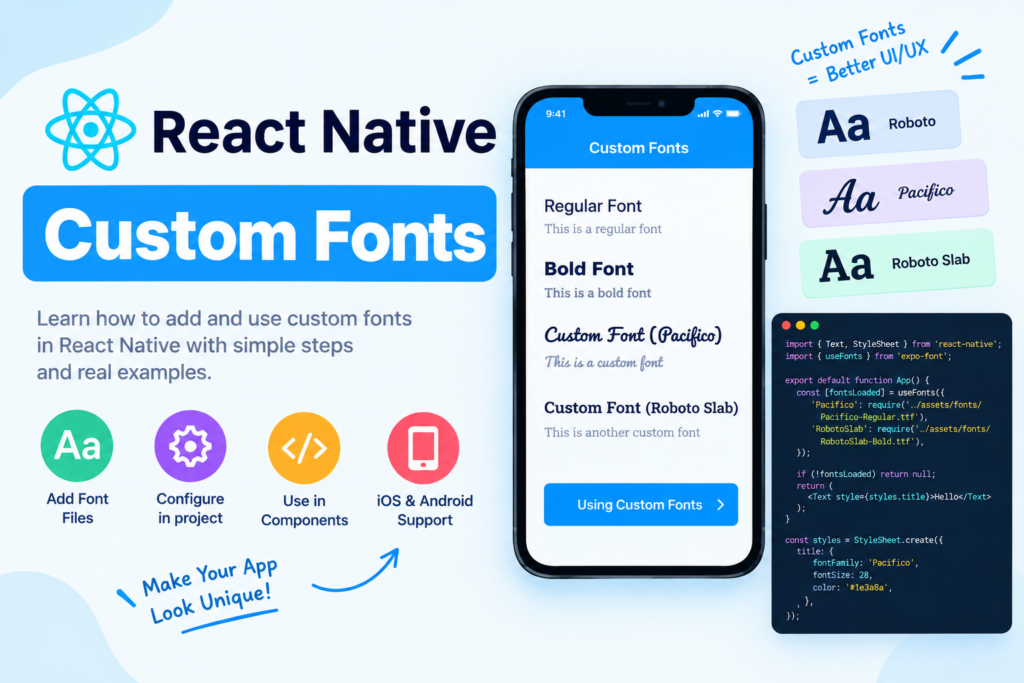
Typography plays an important role in mobile app design. The right font can make your application look more professional, improve readability, and create a consistent user experience.
By default, React Native uses system fonts. However, you can use custom fonts such as Roboto, Poppins, Inter, or other licensed font families to match your application’s design.
In this tutorial, you’ll learn how to add and use React Native custom fonts with practical examples. We’ll cover font installation in Expo projects, configuration for React Native CLI, applying different font weights, and fixing common font-loading issues on Android and iOS.
What Are Custom Fonts in React Native?
Custom fonts are font files that you include in your application instead of relying only on the device’s default fonts.
Common font formats include:
.ttf— TrueType Font.otf— OpenType Font
For example, you might use Poppins for headings and Inter for body text. You can then apply these fonts to React Native Text components using the fontFamily style property.
<Text style={{ fontFamily: 'Poppins-Regular' }}>
  Welcome to My App
</Text>
The exact font-family name depends on your setup and the font-loading method you use.
Why Use Custom Fonts in React Native?
Using custom fonts can help you:
- Create a consistent brand identity.
- Improve the visual hierarchy of headings and body text.
- Match your mobile application to your website or design system.
- Customize typography for buttons, labels, and navigation headers.
- Create a more polished user interface.
Custom fonts are especially useful in e-commerce apps, social media apps, dashboards, and applications with a strong visual identity.
Method 1: Add Custom Fonts in Expo React Native
If your project uses Expo, the expo-font package provides a convenient way to load custom font files.
Step 1: Install Expo Font
Open your project terminal and run:
npx expo install expo-fontThis installs a version of expo-font compatible with your Expo project.
Step 2: Download Font Files
Download your chosen font files from a legitimate source. For this tutorial, we’ll use Poppins as an example.
You can obtain fonts from Google Fonts, subject to the applicable font licence.
Create a fonts folder inside your project’s assets directory.
Your project structure should look like this:
my-app/
├── assets/
│   └── fonts/
│       ├── Poppins-Regular.ttf
│       ├── Poppins-Bold.ttf
│       └── Poppins-Medium.ttf
├── App.js
├── package.json
└── app.json
Make sure the filenames match the files you actually downloaded.
Step 3: Load Custom Fonts Using useFonts
Open App.js and add the following code:
import React from 'react';
import { View, Text, StyleSheet } from 'react-native';
import { useFonts } from 'expo-font';

export default function App() {
  const [fontsLoaded, fontError] = useFonts({
    'Poppins-Regular': require('./assets/fonts/Poppins-Regular.ttf'),
    'Poppins-Bold': require('./assets/fonts/Poppins-Bold.ttf'),
    'Poppins-Medium': require('./assets/fonts/Poppins-Medium.ttf'),
  });

  if (!fontsLoaded && !fontError) {
    return null;
  }

  if (fontError) {
    return (
      <View style={styles.container}>
        <Text>Unable to load custom fonts.</Text>
      </View>
    );
  }

  return (
    <View style={styles.container}>
      <Text style={styles.title}>
        React Native Custom Fonts
      </Text>

      <Text style={styles.regular}>
        This is regular Poppins text.
      </Text>

      <Text style={styles.medium}>
        This is medium Poppins text.
      </Text>

      <Text style={styles.bold}>
        This is bold Poppins text.
      </Text>
    </View>
  );
}

const styles = StyleSheet.create({
  container: {
    flex: 1,
    justifyContent: 'center',
    alignItems: 'center',
    padding: 20,
    backgroundColor: '#FFFFFF',
  },
  title: {
    fontFamily: 'Poppins-Bold',
    fontSize: 24,
    marginBottom: 20,
    color: '#1E293B',
    textAlign: 'center',
  },
  regular: {
    fontFamily: 'Poppins-Regular',
    fontSize: 16,
    marginBottom: 12,
  },
  medium: {
    fontFamily: 'Poppins-Medium',
    fontSize: 16,
    marginBottom: 12,
  },
  bold: {
    fontFamily: 'Poppins-Bold',
    fontSize: 18,
  },
});
How does this code work?
1. Load the font files
const [fontsLoaded, fontError] = useFonts({
  'Poppins-Regular': require('./assets/fonts/Poppins-Regular.ttf'),
  'Poppins-Bold': require('./assets/fonts/Poppins-Bold.ttf'),
});
The useFonts hook loads the local font files and returns the loading status and any loading error.
2. Wait for fonts to load
if (!fontsLoaded && !fontError) {
  return null;
}
This prevents the main interface from rendering before the fonts are ready. In a production application, you can display a splash screen or loading indicator instead of returning null.
3. Apply the custom font
<Text style={{ fontFamily: 'Poppins-Bold' }}>
  Hello React Native
</Text>
The fontFamily value must match the key registered in the useFonts configuration.
Once the font is loaded, React Native can use it in the corresponding text component.
Method 2: Use Custom Fonts with React Native CLI
If you’re using a standard React Native Community CLI project instead of Expo, you can bundle font files as application assets.
The configuration differs from Expo, so don’t assume that Expo’s useFonts approach is necessary for every project.
Step 1: Create an Assets Folder
Add a fonts directory at the project root:
my-app/
├── assets/
│   └── fonts/
│       ├── Poppins-Regular.ttf
│       └── Poppins-Bold.ttf
├── android/
├── ios/
├── App.tsx
├── package.json
└── react-native.config.js
Step 2: Configure the Font Assets
Create a react-native.config.js file in the project root:
module.exports = {
  assets: ['./assets/fonts/'],
};
This declares the directory containing your font assets.
Step 3: Link the Font Assets
If your React Native version and project setup support the React Native asset-linking command, run:
npx react-native-assetIf the command is not available in your project, add the compatible react-native-asset development dependency first, following its installation instructions.
After linking, rebuild the native application. Adding font files does not always take effect through JavaScript hot reload alone.
Important: Native asset-linking behavior can vary by React Native version and project configuration. If your app uses a custom native setup, verify the resulting Android and iOS resources before proceeding.
Step 4: Use the Font in Your Components
After the font assets are correctly bundled, use the font family exposed by your native build.
import React from 'react';
import { View, Text, StyleSheet } from 'react-native';

export default function App() {
  return (
    <View style={styles.container}>
      <Text style={styles.heading}>
        Custom Font Example
      </Text>

      <Text style={styles.paragraph}>
        This text uses a bundled custom font.
      </Text>
    </View>
  );
}

const styles = StyleSheet.create({
  container: {
    flex: 1,
    justifyContent: 'center',
    padding: 24,
  },
  heading: {
    fontFamily: 'Poppins-Bold',
    fontSize: 26,
    marginBottom: 16,
  },
  paragraph: {
    fontFamily: 'Poppins-Regular',
    fontSize: 16,
    lineHeight: 24,
  },
});
The family names shown are examples. Depending on the font and native platform, the actual name may differ from the filename. If the font doesn’t appear, inspect the linked resources and verify the correct family name for Android and iOS.
Method 3: Use Custom Fonts in the App Header
You can also apply custom fonts to navigation headers, buttons, and other common components.
For example, with React Navigation’s native stack navigator:
<Stack.Screen
  name="Home"
  component={HomeScreen}
  options={{
    title: 'My Application',
    headerTitleStyle: {
      fontFamily: 'Poppins-Bold',
      fontSize: 20,
    },
  }}
/>
Make sure the font has been loaded or bundled before the navigation header renders. For an Expo app using useFonts, render the navigation tree after font loading completes.
This approach helps keep the typography consistent across the application.
Method 4: Use Different Font Weights
A good typography system usually includes regular, medium, semibold, and bold styles.
When you have separate font files, you can register each file with a different key:
const [fontsLoaded] = useFonts({
  'Inter-Regular': require('./assets/fonts/Inter-Regular.ttf'),
  'Inter-Medium': require('./assets/fonts/Inter-Medium.ttf'),
  'Inter-SemiBold': require('./assets/fonts/Inter-SemiBold.ttf'),
  'Inter-Bold': require('./assets/fonts/Inter-Bold.ttf'),
});
Then apply the required style:
<Text style={{ fontFamily: 'Inter-Regular' }}>
  Regular text
</Text>

<Text style={{ fontFamily: 'Inter-Medium' }}>
  Medium text
</Text>

<Text style={{ fontFamily: 'Inter-SemiBold' }}>
  Semibold text
</Text>

<Text style={{ fontFamily: 'Inter-Bold' }}>
  Bold text
</Text>
This method provides predictable results because each key points to a specific font file.
Tip: If you load separate font files for each weight, don’t assume that fontWeight: 'bold' will automatically select the correct custom font file. Use the registered family key for the exact weight when needed.
Method 5: Create a Reusable Typography Component
Instead of repeating font styles throughout your application, create reusable components.
For example, create a file named AppText.js:
import React from 'react';
import { Text, StyleSheet } from 'react-native';

export default function AppText({
  children,
  variant = 'regular',
  style,
  ...props
}) {
  const variantStyle = {
    regular: styles.regular,
    medium: styles.medium,
    bold: styles.bold,
  }[variant] ?? styles.regular;

  return (
    <Text
      {...props}
      style={[styles.base, variantStyle, style]}
    >
      {children}
    </Text>
  );
}

const styles = StyleSheet.create({
  base: {
    fontSize: 16,
    color: '#1E293B',
  },
  regular: {
    fontFamily: 'Poppins-Regular',
  },
  medium: {
    fontFamily: 'Poppins-Medium',
  },
  bold: {
    fontFamily: 'Poppins-Bold',
  },
});
Now use the component anywhere in your app:
<AppText>
  This is regular text.
</AppText>

<AppText variant="medium">
  This is medium text.
</AppText>

<AppText variant="bold">
  This is bold text.
</AppText>
A reusable typography component makes your UI easier to maintain. If you decide to change your font family later, you can update the shared component rather than editing every screen.
For Expo projects, ensure the app doesn’t render these text components before the fonts are loaded.
Common React Native Custom Font Issues
1. Custom font is not displaying
If your text still uses a default font, check the following:
- Verify that the font file exists at the specified path.
- Check that the
fontFamilyvalue matches the registered key or native font family. - Confirm that the font has loaded before rendering the text.
- Rebuild the native application after changing bundled assets.
2. Font works on Android but not iOS
Android and iOS can resolve bundled font families differently. Confirm that the font was included in the correct native resources and that the family name works on both platforms.
Test on both an Android emulator and an iOS simulator or device.
3. Font file path error
In Expo, use a valid static asset path:
'Poppins-Regular': require('./assets/fonts/Poppins-Regular.ttf')Check the directory name, filename spelling, and file extension. Static require() paths should not be built dynamically from variables.
4. Bold style is not working
If the font is loaded under a custom family key, applying fontWeight: 'bold' may not select the font file you expected.
Register a bold font file separately and apply its registered key:
<Text style={{ fontFamily: 'Poppins-Bold' }}>
  Bold Heading
</Text>
5. Fonts stop working after a build
Check that the font files are included in the build and that your asset configuration is correct. Clear relevant caches if necessary, rebuild the native app, and test the packaged version instead of relying only on the development server.
Best Practices for Using Custom Fonts
Follow these practices when implementing React Native custom fonts:
- Use only the font weights you need. Loading unnecessary font files can increase the app’s asset size.
- Choose readable fonts. Prioritize legibility for body text and small labels.
- Create a typography system. Keep headings, body text, and buttons consistent.
- Test across platforms. Verify Android and iOS rendering.
- Handle loading states. Avoid showing partially styled interfaces while fonts load.
- Check font licences. Confirm that your font can be distributed inside a mobile application.
- Use reusable components. Centralize font-family and typography settings for easier maintenance.
Frequently Asked Questions
How do I add custom fonts in React Native?
For Expo projects, install expo-font, add your font files to the assets directory, load them using useFonts, and apply the registered font keys through fontFamily.
For React Native CLI projects, bundle the font assets using a compatible asset-linking setup and rebuild the native app.
Can I use Google Fonts in React Native?
Yes. You can download fonts from Google Fonts and include the relevant font files in your application, provided you follow the applicable licence terms.
How do I use custom fonts in Expo?
Install expo-font, create an assets directory for your font files, register them with the useFonts hook, and wait for the fonts to load before rendering the main interface.
Why is my custom font not working in React Native?
Common causes include incorrect file paths, mismatched font-family names, missing native asset configuration, and rendering text before fonts are loaded.
Can I use multiple custom fonts in one application?
Yes. You can load multiple font families and use them for different UI elements. For example, use one font for headings and another for body text.
Does React Native support TTF and OTF files?
TTF and OTF are common font formats for mobile applications, but support and setup can depend on the font file and the loading method. Test the files you intend to ship on your target platforms.
Conclusion
React Native custom fonts let you create a consistent and professional appearance across your mobile application.
In this tutorial, you learned how to load font files in Expo, configure bundled assets in React Native CLI, apply different font weights, style navigation headers, and create a reusable typography component.
For a new Expo project, expo-font is a convenient starting point. For a Community CLI project, configure and bundle your font assets according to your native project setup.
For further details, visit the official Expo Font documentation and the React Native Text documentation.