
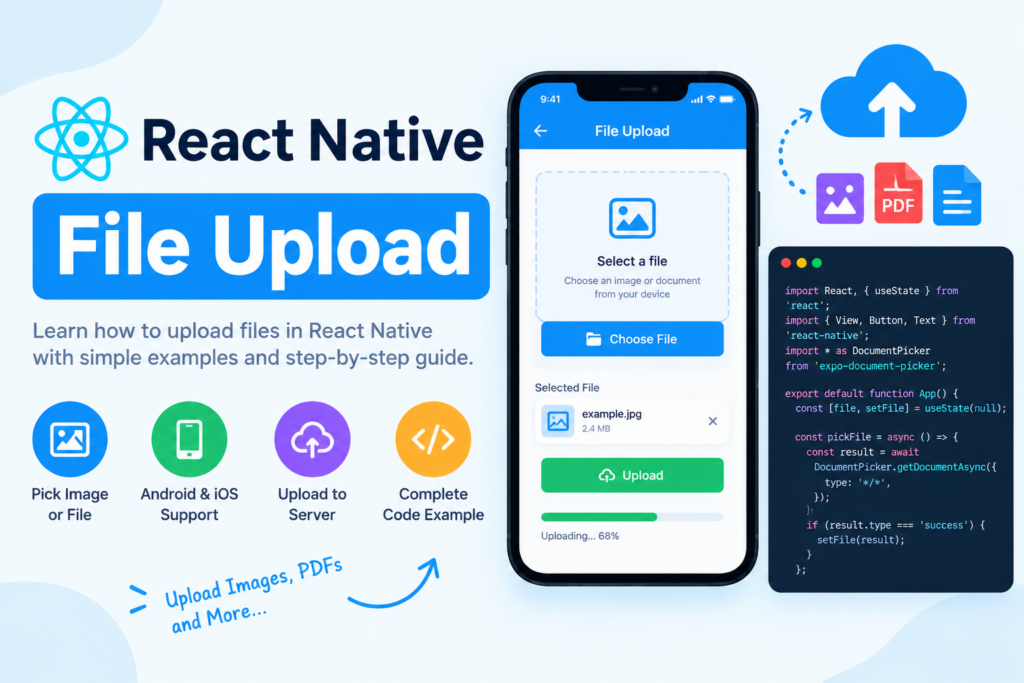
React Native File Upload – File uploading is a common feature in modern mobile applications. Whether you’re building a social media app, an e-commerce application, or a document management system, users may need to upload profile pictures, PDFs, documents, and other files to a server.
In this tutorial, you’ll learn how to implement React Native file upload using a document picker, FormData, and the Fetch API. We’ll build a practical example that lets users select a file, upload it to a backend API, and handle success and error responses.
What Is File Upload in React Native?
File upload in React Native means selecting a file from a device and sending it to a server through an API request.
A typical file upload process involves these steps:
- The user taps a button to select a file.
- The app opens the device’s file picker.
- The user selects an image, PDF, or another supported file.
- The app prepares the selected file using
FormData. - The app sends a multipart HTTP request to the backend.
- The server validates and stores the file.
- The app displays a success or error message.
You can use this approach for profile pictures, resumes, invoices, identity documents, and other file-upload features.
Step 1: Install the Required Package
For this example, we’ll use Expo’s Document Picker to select files from the device.
If your project uses Expo, install the package with:
npx expo install expo-document-pickerThis package provides a native interface for selecting documents from a device.
If you’re using React Native Community CLI without Expo, you can use a compatible document picker library such as @react-native-documents/picker. Follow that library’s installation instructions for your React Native version.
Important: The code in this tutorial uses the Expo Document Picker API.
Step 2: Create a File Upload Component
Create a file named FileUploadScreen.js and add the following code.
This example allows users to select an image or PDF, display the selected filename, and upload it to your backend.
import React, { useState } from 'react';
import {
  View,
  Text,
  Button,
  StyleSheet,
  ActivityIndicator,
  Alert,
} from 'react-native';
import * as DocumentPicker from 'expo-document-picker';

const API_URL = 'https://your-server.com/api/upload';

export default function FileUploadScreen() {
  const [file, setFile] = useState(null);
  const [uploading, setUploading] = useState(false);

  const pickFile = async () => {
    try {
      const result = await DocumentPicker.getDocumentAsync({
        type: ['image/*', 'application/pdf'],
        copyToCacheDirectory: true,
        multiple: false,
      });

      if (!result.canceled && result.assets?.length > 0) {
        setFile(result.assets[0]);
      }
    } catch (error) {
      Alert.alert('Error', 'Unable to select the file.');
    }
  };

  const uploadFile = async () => {
    if (!file) {
      Alert.alert('Select a file', 'Please choose a file first.');
      return;
    }

    const formData = new FormData();

    formData.append('file', {
      uri: file.uri,
      name: file.name,
      type: file.mimeType || 'application/octet-stream',
    });

    try {
      setUploading(true);

      const response = await fetch(API_URL, {
        method: 'POST',
        headers: {
          Accept: 'application/json',
        },
        body: formData,
      });

      const data = await response.json();

      if (!response.ok) {
        throw new Error(data.message || 'File upload failed.');
      }

      Alert.alert(
        'Success',
        data.message || 'File uploaded successfully.'
      );

      setFile(null);
    } catch (error) {
      Alert.alert(
        'Upload Failed',
        error.message || 'Something went wrong.'
      );
    } finally {
      setUploading(false);
    }
  };

  return (
    <View style={styles.container}>
      <Text style={styles.title}>React Native File Upload</Text>

      <Button title="Choose File" onPress={pickFile} />

      {file && (
        <View style={styles.fileContainer}>
          <Text style={styles.fileName}>
            Selected: {file.name}
          </Text>

          <Text style={styles.fileSize}>
            Size: {file.size ?? 'Unknown'} bytes
          </Text>
        </View>
      )}

      {uploading ? (
        <ActivityIndicator size="large" style={styles.loader} />
      ) : (
        <Button
          title="Upload File"
          onPress={uploadFile}
          disabled={!file}
        />
      )}
    </View>
  );
}

const styles = StyleSheet.create({
  container: {
    flex: 1,
    justifyContent: 'center',
    padding: 24,
    backgroundColor: '#FFFFFF',
  },
  title: {
    fontSize: 22,
    fontWeight: 'bold',
    textAlign: 'center',
    marginBottom: 24,
  },
  fileContainer: {
    marginVertical: 20,
    padding: 14,
    backgroundColor: '#F1F5F9',
    borderRadius: 8,
  },
  fileName: {
    fontSize: 16,
    fontWeight: '600',
  },
  fileSize: {
    marginTop: 6,
    color: '#64748B',
  },
  loader: {
    marginTop: 20,
  },
});
Replace https://your-server.com/api/upload with your actual backend API endpoint.
Understanding the code
Let’s look at the main parts of this implementation.
1. Select a file
const result = await DocumentPicker.getDocumentAsync({
  type: ['image/*', 'application/pdf'],
  copyToCacheDirectory: true,
  multiple: false,
});
The document picker opens the device’s file selection interface.
typespecifies the file types the picker should allow.copyToCacheDirectoryrequests a cached copy that can be accessed by other APIs.multiple: falseallows the user to select one file.
The returned result contains information about the selected file, including its URI, filename, MIME type, and potentially its size.
2. Store the selected file
if (!result.canceled && result.assets?.length > 0) {
  setFile(result.assets[0]);
}
The selected file is stored in React state so that the app can display its details and use it during upload.
If the user cancels the picker, the app does not attempt to upload anything.
3. Create FormData
const formData = new FormData();

formData.append('file', {
  uri: file.uri,
  name: file.name,
  type: file.mimeType || 'application/octet-stream',
});
FormData prepares the selected file for a multipart HTTP request.
The field name 'file' must match the field name expected by your backend. Here, the file’s URI identifies the local resource, name supplies the filename, and type supplies the MIME type.
4. Send the API request
const response = await fetch(API_URL, {
  method: 'POST',
  headers: {
    Accept: 'application/json',
  },
  body: formData,
});
This sends a POST request to the server.
Important: Don’t manually set the Content-Type header to multipart/form-data in this React Native example. Let Fetch generate the multipart boundary for the request body.
The server must support multipart file uploads and accept the expected field name.
5. Handle the response
if (!response.ok) {
  throw new Error(data.message || 'File upload failed.');
}
A successful HTTP response usually has a status code in the 200–299 range. Checking response.ok ensures that an HTTP error isn’t mistakenly treated as a successful upload.
The finally block resets the loading state whether the upload succeeds or fails.
Step 3: Create a Backend API for File Upload
The React Native app sends the file to a server. If you don’t already have a backend, here’s a simple example using Node.js, Express, and Multer.
First, create a backend project and install the required packages:
mkdir file-upload-server
cd file-upload-server
npm init -y
npm install express multer
Create an server.js file:
const express = require('express');
const multer = require('multer');
const path = require('path');

const app = express();

const storage = multer.diskStorage({
  destination: (req, file, cb) => {
    cb(null, 'uploads/');
  },

  filename: (req, file, cb) => {
    const uniqueName =
      Date.now() + '-' + Math.round(Math.random() * 1e9);

    cb(
      null,
      uniqueName + path.extname(file.originalname)
    );
  },
});

const upload = multer({
  storage,
  limits: {
    fileSize: 5 * 1024 * 1024,
  },
});

app.post('/api/upload', upload.single('file'), (req, res) => {
  if (!req.file) {
    return res.status(400).json({
      message: 'No file was uploaded.',
    });
  }

  res.status(200).json({
    message: 'File uploaded successfully.',
    filename: req.file.filename,
  });
});

app.listen(3000, () => {
  console.log('Server running on port 3000');
});
Create the uploads directory before starting the server:
mkdir uploads
node server.js
The server now accepts a single uploaded file under the file field.
Important backend security considerations
This is a basic demonstration, not a production-ready upload service. Before using it in a real application:
- Validate file extensions and actual file content on the server.
- Allow only the file types your application needs.
- Enforce file-size limits.
- Add authentication and authorization where appropriate.
- Generate safe filenames rather than trusting user-supplied names.
- Store uploads in a suitable private or public storage system based on your requirements.
- Avoid exposing sensitive uploaded files through a public directory.
For production applications, consider object storage or a dedicated file-storage service instead of storing all uploads on the application server.
Step 4: Connect the React Native App to Your Backend
Update your API URL:
const API_URL = 'https://your-server.com/api/upload';For local testing, the address depends on where your app and server are running.
- Android emulator: Your development computer is commonly accessible at
http://10.0.2.2:3000/api/upload. - iOS simulator: Your development computer is commonly accessible at
http://localhost:3000/api/upload. - Physical device: Use your computer’s reachable local network IP address, provided the phone and computer can communicate.
- Production: Use your deployed HTTPS endpoint.
Local HTTP requests may be blocked by platform security settings. For production, use HTTPS and configure the server, firewall, and networking appropriately.
Step 5: Upload Images, PDFs, and Other Files
The type option in the document picker controls which file types users can select.
For images only:
const result = await DocumentPicker.getDocumentAsync({
  type: 'image/*',
  multiple: false,
});
For PDF files only:
const result = await DocumentPicker.getDocumentAsync({
  type: 'application/pdf',
  multiple: false,
});
For common images and documents:
const result = await DocumentPicker.getDocumentAsync({
  type: [
    'image/*',
    'application/pdf',
    'text/plain',
  ],
  multiple: false,
});
Remember that the picker is a user-interface filter, not a security boundary. Your backend must validate the uploaded file independently.
Step 6: Handle Upload Errors
File uploads can fail for several reasons, including poor internet connectivity, server errors, file-size restrictions, and unsupported file types.
Here are some common issues and their solutions.
File too large
If the server rejects large files, display a useful message and consider checking the file size before uploading.
const MAX_SIZE = 5 * 1024 * 1024;

if (file.size && file.size > MAX_SIZE) {
  Alert.alert(
    'File too large',
    'Please select a file smaller than 5 MB.'
  );
  return;
}
Client-side checks improve the user experience, but the server must enforce its own size limit.
Network request failed
Check the API URL, internet connectivity, server availability, and platform networking configuration.
If you’re using an emulator, remember that localhost may refer to the emulator itself rather than your development computer.
Unsupported file type
Check the MIME type and actual file contents on the backend. Don’t rely exclusively on the filename or MIME type sent by the app.
Invalid API response
If your server doesn’t return JSON for every response, calling response.json() may itself fail. For production apps, handle unexpected response formats and provide a friendly error message.
Step 7: Improve the File Upload Experience
Once basic uploading works, you can make the feature more user-friendly.
Show upload progress: The Fetch API doesn’t provide a standard upload-progress callback. If you need progress indicators, consider a compatible upload library or a platform-appropriate native networking implementation.
Support multiple files: Set multiple: true in the document picker, then append each selected file to FormData using the field name expected by your backend.
Preview images: Use React Native’s Image component with the selected file URI when the selected resource is suitable for previewing.
Prevent duplicate uploads: Disable the upload button while a request is in progress.
Retry failed uploads: Provide a retry option for temporary network errors, while ensuring that retrying doesn’t accidentally create duplicate records on the server.
Common Mistakes in React Native File Upload
- Using the wrong API endpoint: Ensure that the mobile app can reach the backend URL.
- Incorrect FormData field name: The frontend field name must match the backend upload middleware.
- Manually setting the multipart boundary: Let Fetch construct the multipart request headers.
- Ignoring HTTP errors: Always check
response.okbefore showing a success message. - Trusting file metadata: Validate uploads on the server.
- Using localhost on a physical device: Use a reachable address or a deployed endpoint.
- Assuming every picker result contains a file: Handle cancellation and missing data.
Frequently Asked Questions
How do I upload a file in React Native?
Use a document picker to select a file, append its URI, name, and MIME type to FormData, and send a POST request to a backend endpoint that supports multipart uploads.
Which package can I use to select files?
For Expo projects, you can use expo-document-picker. For React Native Community CLI projects, @react-native-documents/picker is another option.
Can I upload PDF files in React Native?
Yes. Configure the document picker to accept application/pdf, then send the selected file to your backend using FormData.
Why does my React Native file upload fail?
Common causes include an incorrect API URL, unsupported MIME types, a mismatch between frontend and backend field names, server restrictions, network issues, or incorrect native configuration.
Do I need a backend for file uploads?
If files must be stored on a remote server, you generally need a backend or a storage service with a secure upload mechanism. The mobile app alone cannot safely provide server-side storage and validation.
How can I upload files to cloud storage?
You can integrate cloud object storage such as Amazon S3 or another storage provider. For production, use a secure backend or appropriately scoped, short-lived upload credentials rather than embedding permanent storage secrets in the mobile app.
Conclusion
React Native file upload is straightforward once you understand file selection, FormData, HTTP requests, and backend handling.
In this tutorial, we created a file picker, displayed the selected file, uploaded it through a POST request, and handled success and failure responses. We also covered backend setup, file validation, common mistakes, and production considerations.
Start with a simple single-file upload, then add features such as image previews, upload progress, multiple-file selection, and cloud storage as your application grows.
For more information, read the official Expo Document Picker documentation and the React Native networking documentation.
Thank you for visiting us, you can learn more usefull React Native Tutorials.