
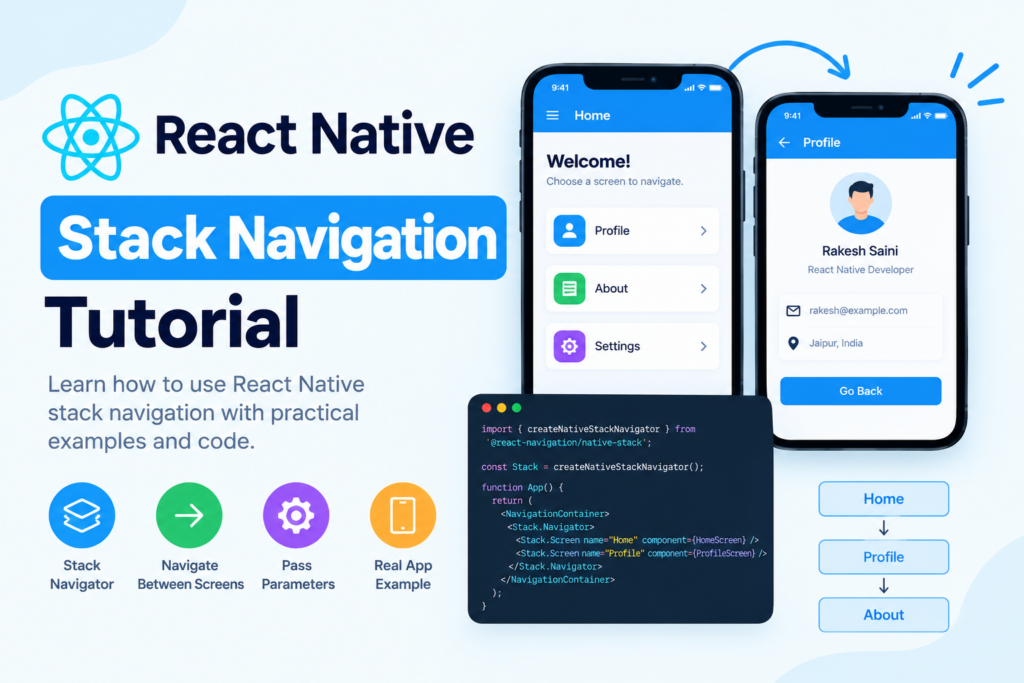
When building a mobile application, you usually need multiple screens, such as Home, Profile, Settings, and Details. Users should be able to move between these screens and return to the previous screen when needed.
React Native stack navigation makes this possible by managing screens in a stack. In this tutorial, you’ll learn how to set up stack navigation using React Navigation, navigate between screens, pass parameters, and handle back navigation with practical examples.
What Is Stack Navigation in React Native?
Stack navigation is a navigation pattern in which screens are placed on top of one another, similar to a stack of cards.
For example, imagine a user opens your app:
- The user starts on the Home screen.
- They tap a button to open the Profile screen.
- They open the Details screen from Profile.
- They press the back button to return to Profile.
Each new screen is added to the navigation stack. When the user goes back, the current screen is removed from the top of the stack, revealing the previous screen.
React Native doesn’t include a built-in navigation system for managing application screens. You can use the React Navigation library to implement this functionality.
Why Use React Native Stack Navigation?
Stack navigation is useful for many types of mobile applications.
- Easy screen navigation: Move between Home, Profile, Settings, and other screens.
- Back navigation: Return to previously opened screens.
- Screen parameters: Pass IDs, names, and other data between screens.
- Navigation history: Maintain a stack of visited screens.
- Header customization: Set screen titles and header buttons.
- Better app structure: Keep navigation logic separate from individual screens.
Step 1: Install React Navigation
First, make sure you have a React Native project ready. If you’re starting a new project, you can create one using the official React Native setup instructions.
For an existing React Native project, install the core React Navigation package:
npm install @react-navigation/nativeNext, install the required dependencies.
For a project using React Native Community CLI, run:
npm install react-native-screens react-native-safe-area-contextInstall the native stack navigator:
npm install @react-navigation/native-stackFor iOS projects using CocoaPods, install the native dependencies:
npx pod-installIf you’re using Expo, follow the Expo-compatible installation instructions instead:
npx expo install @react-navigation/native
npx expo install react-native-screens react-native-safe-area-context
npm install @react-navigation/native-stack
Note: Expo and React Native CLI projects can have different native setup requirements. Follow the official installation instructions for your project type.
Step 2: Create Your First Stack Navigator
Let’s create a simple app with two screens: Home and Profile.
Open your App.js file and add the following code:
import React from 'react';
import { Button, StyleSheet, Text, View } from 'react-native';
import { NavigationContainer } from '@react-navigation/native';
import { createNativeStackNavigator } from '@react-navigation/native-stack';

const Stack = createNativeStackNavigator();

function HomeScreen({ navigation }) {
  return (
    <View style={styles.container}>
      <Text style={styles.title}>Welcome to Home Screen</Text>

      <Button
        title="Go to Profile"
        onPress={() => navigation.navigate('Profile')}
      />
    </View>
  );
}

function ProfileScreen({ navigation }) {
  return (
    <View style={styles.container}>
      <Text style={styles.title}>Welcome to Profile Screen</Text>

      <Button
        title="Go Back"
        onPress={() => navigation.goBack()}
      />
    </View>
  );
}

export default function App() {
  return (
    <NavigationContainer>
      <Stack.Navigator>
        <Stack.Screen
          name="Home"
          component={HomeScreen}
          options={{ title: 'Home' }}
        />

        <Stack.Screen
          name="Profile"
          component={ProfileScreen}
          options={{ title: 'Profile' }}
        />
      </Stack.Navigator>
    </NavigationContainer>
  );
}

const styles = StyleSheet.create({
  container: {
    flex: 1,
    justifyContent: 'center',
    alignItems: 'center',
    padding: 20,
  },
  title: {
    fontSize: 20,
    fontWeight: 'bold',
    marginBottom: 20,
    textAlign: 'center',
  },
});
How does this code work?
Let’s understand the important parts.
1. Create a stack navigator
const Stack = createNativeStackNavigator();This creates a native stack navigator that manages the screens in your application.
2. Add the NavigationContainer
<NavigationContainer>
  {/* Navigator goes here */}
</NavigationContainer>
The NavigationContainer manages the navigation state and connects your navigation tree to React Navigation.
In a typical application, you should have one root navigation container.
3. Register screens
<Stack.Navigator>
  <Stack.Screen
    name="Home"
    component={HomeScreen}
  />

  <Stack.Screen
    name="Profile"
    component={ProfileScreen}
  />
</Stack.Navigator>
Each Stack.Screen registers a screen with a unique route name and a React component.
4. Navigate to another screen
navigation.navigate('Profile');This navigates to the Profile route.
5. Return to the previous screen
navigation.goBack();This requests a return to the previous screen in the navigation history.
Step 3: Pass Parameters Between Screens
In real applications, you often need to pass information from one screen to another. For example, you might pass a user’s name from Home to Profile.
You can pass parameters using the second argument of navigation.navigate().
Send parameters
function HomeScreen({ navigation }) {
  return (
    <View>
      <Text>Home Screen</Text>

      <Button
        title="View Profile"
        onPress={() =>
          navigation.navigate('Profile', {
            userId: 101,
            userName: 'Rahul',
          })
        }
      />
    </View>
  );
}
Receive parameters
function ProfileScreen({ route }) {
  const { userId, userName } = route.params ?? {};

  return (
    <View>
      <Text>Profile Screen</Text>
      <Text>User ID: {userId}</Text>
      <Text>User Name: {userName}</Text>
    </View>
  );
}
Here, route.params contains the values passed from the previous navigation action.
The ?? {} fallback prevents an error if the route parameters are missing. In production applications, you should also handle missing values appropriately.
Example output:
- User ID: 101
- User Name: Rahul
This approach is useful for product details, user profiles, order summaries, and other screens that require data from another screen.
Step 4: Customize the Stack Navigation Header
React Navigation lets you customize the title and appearance of the header.
For example:
<Stack.Screen
  name="Profile"
  component={ProfileScreen}
  options={{
    title: 'My Profile',
    headerStyle: {
      backgroundColor: '#1976D2',
    },
    headerTintColor: '#FFFFFF',
    headerTitleStyle: {
      fontWeight: 'bold',
    },
  }}
/>
This configuration changes the header title, background color, text color, and title font weight.
You can also set options for every screen in the navigator:
<Stack.Navigator
  screenOptions={{
    headerTitleAlign: 'center',
    headerBackTitle: 'Back',
  }}
>
  {/* Register screens here */}
</Stack.Navigator>
Some header options depend on the platform and installed React Navigation version. Check the native stack documentation for the options supported by your setup.
Step 5: Add More Screens
You can register additional screens in the same stack navigator.
<Stack.Navigator initialRouteName="Home">
  <Stack.Screen
    name="Home"
    component={HomeScreen}
  />

  <Stack.Screen
    name="Profile"
    component={ProfileScreen}
  />

  <Stack.Screen
    name="Settings"
    component={SettingsScreen}
  />
</Stack.Navigator>
Now your application can navigate among Home, Profile, and Settings.
For example:
navigation.navigate('Settings');Make sure SettingsScreen is defined and registered before navigating to the Settings route.
Step 6: Understand Common Navigation Methods
React Navigation provides several useful methods for controlling navigation.
navigation.navigate()
Use navigate() to navigate to a named route.
navigation.navigate('Profile');navigation.goBack()
Use goBack() to return to the previous screen.
navigation.goBack();navigation.push()
Use push() when you want to push a new instance of a route onto the stack.
navigation.push('Profile');Unlike navigate(), push() explicitly adds another screen instance to the stack. This can be useful when opening multiple detail screens of the same type.
navigation.replace()
Use replace() to replace the current screen with another route.
navigation.replace('Home');This is useful in certain flows where the user should not return to the replaced screen using normal back navigation.
navigation.popToTop()
Use popToTop() to return to the first screen in the current stack.
navigation.popToTop();For example, this can return the user to the root screen after completing a multi-screen workflow.
Step 7: Set the Initial Screen
By default, the first screen registered in the navigator is usually the initial screen. You can specify a different starting route using initialRouteName.
<Stack.Navigator initialRouteName="Profile">
  <Stack.Screen
    name="Home"
    component={HomeScreen}
  />

  <Stack.Screen
    name="Profile"
    component={ProfileScreen}
  />
</Stack.Navigator>
In this example, Profile is the initial route even though Home is registered first.
This option is useful when creating separate navigation flows, onboarding experiences, or demo screens. For authentication-based applications, choose the initial navigation state according to the user’s authentication status rather than relying on a fixed screen.
Step 8: Handle Back Navigation Safely
The stack navigator normally provides a back button in the header when there is a previous screen.
You can also use a custom button:
<Button
  title="Go Back"
  onPress={() => navigation.goBack()}
/>
If the current screen is the first screen in the stack, there may be no previous screen to return to.
You can check this before showing a back action:
if (navigation.canGoBack()) {
  navigation.goBack();
}
For Android hardware back-button handling, React Native and React Navigation provide back-navigation behavior, but custom overrides should be added only when necessary.
React Native Stack Navigation vs. Bottom Tab Navigation
Stack navigation and bottom tab navigation solve different problems.
| Feature | Stack Navigation | Bottom Tab Navigation |
|---|---|---|
| Main purpose | Move through a sequence of screens | Switch between major app sections |
| Typical UI | Header with back navigation | Tab bar at the bottom |
| Common example | Home → Product Details | Home, Search, Profile |
| Navigation history | Maintains a screen stack | Usually switches between tab routes |
| Best use case | Detail pages and workflows | Main sections of an application |
You can combine both navigators in one application. For example, a bottom tab navigator can contain a separate stack navigator for each major section.
Common React Native Stack Navigation Mistakes
1. Forgetting NavigationContainer
If the root navigation tree isn’t wrapped in NavigationContainer, navigation setup may fail.
2. Using an incorrect route name
Route names are case-sensitive. If the registered screen is named Profile, use:
navigation.navigate('Profile');Don’t use a different spelling such as profile unless that is the actual registered route name.
3. Missing native dependencies
If the app fails after installation, verify that the required React Navigation packages are installed and that native dependencies are configured for your environment.
For React Native CLI projects, rebuilding the app may be necessary after adding native dependencies.
4. Accessing missing route parameters
A screen might be opened without the expected parameters. Use safe defaults or validate the parameters before rendering the screen.
5. Creating duplicate navigation containers
A normal application should have one root NavigationContainer. Avoid wrapping every individual screen in another container unless you intentionally need an independent navigation tree.
Frequently Asked Questions
What is stack navigation in React Native?
Stack navigation is a way to manage screens in a last-in, first-out structure. A new screen is pushed onto the stack, and back navigation returns to the previous screen.
Which library is used for React Native stack navigation?
React Navigation is a widely used navigation library. Its @react-navigation/native-stack package provides native stack navigation for React Native applications.
How do I navigate from one screen to another?
Register both screens in your stack navigator and use navigation.navigate('ScreenName') to navigate to the target route.
How do I pass data between React Native screens?
Pass an object as the second argument to navigation.navigate(). Read the data in the destination screen using route.params.
What is the difference between navigate and push?
navigate() navigates to a route and may reuse an existing route depending on the navigator and its state. push() explicitly adds a new instance of the route to the stack.
Can I use stack navigation with bottom tabs?
Yes. You can nest a stack navigator inside a tab navigator, or combine them in another suitable navigation structure.
Conclusion
React Native stack navigation is an important concept for building mobile applications with multiple screens. With React Navigation and @react-navigation/native-stack, you can register screens, navigate between them, pass parameters, customize headers, and manage back navigation.
Start with a simple Home and Profile example, then expand your navigator as your application grows.
For additional learning, explore the official React Navigation documentation and the Native Stack Navigator guide. These resources explain installation, navigator options, and advanced navigation patterns.
Thank you for visiting FlutterTPoint, keep learning more usefull React Native Tutorials.